MP3, FLAC, AAC or ALAC: Which Audio Format Should You Keep Your Music In?
Open a music folder and you will see files ending in .mp3, .flac, .m4a, .wav and more. They all play music, so why so many kinds? And if you are building a collection or ripping your old CDs, which one should you choose? This guide explains the main formats in everyday terms. JahSing 3 plays all of the ones below, so you can pick based on what suits you rather than what the player allows.
The big divide: lossy and lossless
Everything comes down to one idea. Music on a CD takes up a lot of space. To make files smaller, you can do one of two things.
- Lossy formats shrink the file by throwing away sounds that most people are unlikely to notice, such as very quiet details hidden behind louder ones. You cannot get the lost detail back. MP3 and AAC are lossy.
- Lossless formats shrink the file without throwing anything away, a bit like putting clothes in a vacuum bag. When you unpack it, every detail is back. FLAC and ALAC are lossless.
There is also the plain, uncompressed kind. WAV is the usual example. It is a straight copy of the sound, so it is large.
MP3: the one everybody knows
MP3 was published as an international standard in 1993 and became the format of the early internet. Its patents expired in 2017 and the main licensing program was ended, so it is now free for anyone to use, according to the Fraunhofer institute that helped create it. Almost every device on Earth can play an MP3.
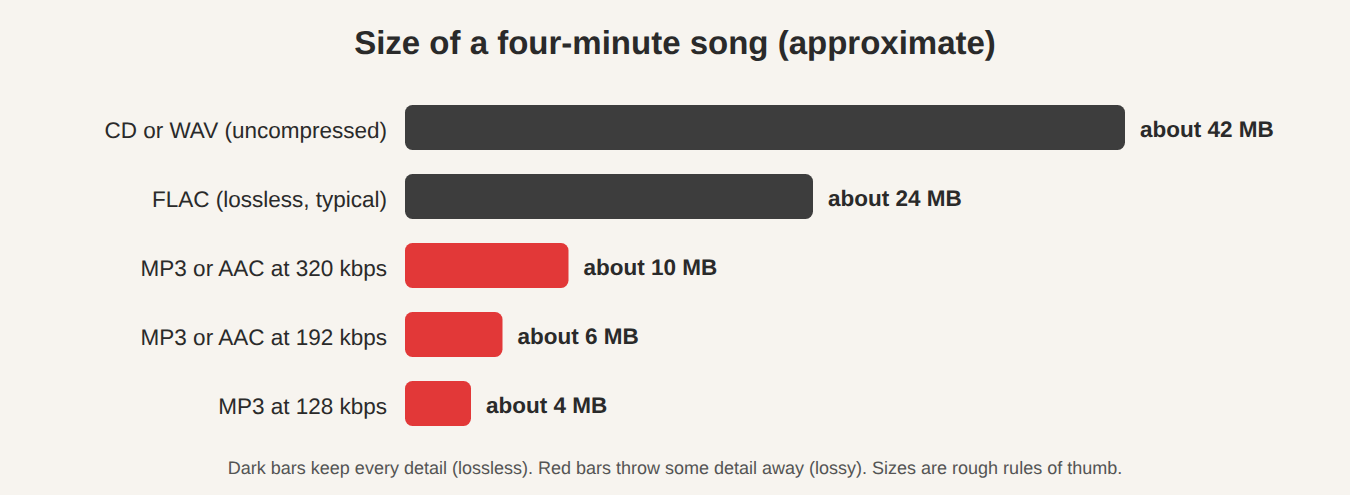
Good for: maximum compatibility, small files, older players and car stereos. Not so good for: people who want a perfect copy of a CD. At 128 kbps (a common older setting) the loss can be audible on good headphones. At 320 kbps, which is the top setting, most people find it hard to tell from the original.
AAC: MP3’s more modern cousin
AAC is also lossy, but it was designed later and generally sounds a bit better than MP3 at the same file size. It is the format behind most songs sold in Apple’s iTunes Store. AAC files usually end in .m4a or .aac. If you are choosing a lossy format today and your devices support it, AAC is a sensible pick.
FLAC: lossless and free
FLAC stands for Free Lossless Audio Codec. It was started by Josh Coalson, and version 1.0 was released in July 2001. In 2003 it became part of the Xiph.Org Foundation, a non-profit that also makes Ogg Vorbis. FLAC files are typically around half to seven-tenths the size of the uncompressed original. Because it is open and free to use, it is widely supported by players and by online music stores that sell lossless downloads.
Good for: keeping a perfect copy of a CD, or buying high-quality downloads. Not so good for: small phones with little storage, or older devices that do not know FLAC.
ALAC: Apple’s lossless format
ALAC (Apple Lossless Audio Codec) does the same job as FLAC but comes from Apple. It arrived in 2004 and was made open source in October 2011, according to this overview. Files are stored in the same type of wrapper as AAC, so they also end in .m4a. That causes a common confusion: two files called song.m4a might be lossy AAC or lossless ALAC. JahSing 3 can tell you which, as we will show below.
WAV: big, simple and uncompressed
WAV is basically the raw sound. A four-minute song takes about 40 megabytes. It has its uses in editing, but for listening there is little reason to prefer it over FLAC, which sounds identical and is roughly half the size.
So which should you keep?
Here is a straightforward way to decide.
- You have lots of storage and care about quality: keep FLAC (or ALAC if you live in the Apple world). You can always make smaller copies later. You cannot add detail back to a lossy file.
- You want a small, easy library: use AAC at 256 kbps or MP3 at 320 kbps. Both sound very good to most listeners on most equipment.
- You are ripping your own CDs: consider ripping to FLAC once and keeping that as your master copy. If you ever need small files for a phone, convert copies and leave the master alone.
- You already have a pile of old MP3s: keep them. Converting a lossy file to a lossless one does not bring back what was lost, it only makes the file bigger.
How to see what you already have in JahSing 3
You do not have to guess. After JahSing 3 scans a folder, you can add a song to the queue and choose Information from the item’s menu. The window lists the format, the bitrate (how much data is used per second of music), the sample rate and the number of channels. For lossless files it also shows the bit depth.
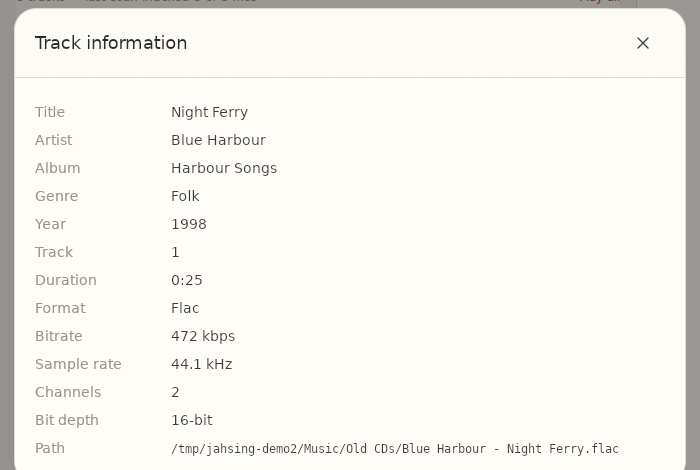
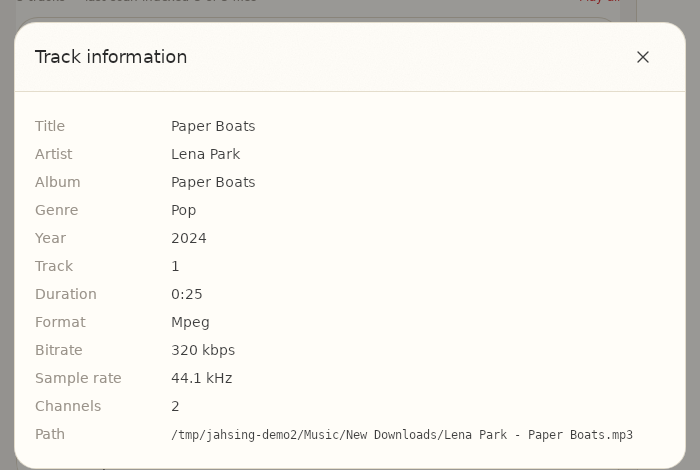
One small point about the labels. For M4A files, JahSing 3 shows the wrapper type (Mp4) in the Format line, so use the Bitrate line as a clue: lossless files use far more data per second than typical AAC files.
The short version
For most people, there is no wrong answer. MP3 and AAC are small and good enough. FLAC and ALAC are for people who want a perfect master copy. JahSing 3 will play whichever you pick. If you want to try a comparison yourself, see our guide to a home listening test.
Sources: Fraunhofer IIS audio blog on mp3 patents and licenses; Library of Congress: MP3 format description; FLAC (Wikipedia); Apple Lossless Audio Codec (Wikipedia); JahSing Features.