Fixing a Lopsided Speaker or Earbud With the Stereo Balance Control
You put on your headphones and something feels off. The singer seems to be standing a little to the left. The guitar is louder in one ear. Or maybe one speaker sits closer to your chair, so it always sounds louder. Lopsided sound is more common than people think, and it is often easy to fix. JahSing 3 has a balance control built in. This guide explains what balance does, how to use it, and what else to check.
What balance means
Most music is recorded in stereo, which means two channels: left and right. The two channels let a recording place sounds across a space, so a guitar might seem to be on the left and a piano on the right. Your speakers or headphones play the left channel on the left side and the right channel on the right.
Balance is a control that decides how loud each side is compared with the other. In the middle, both sides are equal. Slide it left and the left side stays at full level while the right side gets quieter. Slide it right and the opposite happens. It is a tool for correcting the difference between the two sides, not a way to change the music itself.
Why would one side sound louder?
- Your seat is off-center. If you sit nearer to one speaker, it will sound louder. That is simple physics.
- Your ears are different. It is very common for one ear to hear a little better than the other. Many people have never noticed.
- The earbuds are different. Earwax, a poor fit, or a worn or damaged earbud on one side can change the level.
- The recording is uneven. Some older stereo recordings, especially from the 1960s, were made with instruments placed hard to one side. That is part of the design, not a fault.
- The device itself. Cheap or damaged cables, loose connectors and dirty headphone sockets can reduce one side.
- A system setting. Your computer or phone may have a balance setting of its own, which could be off-center by accident.
First, check the simple things
Before you change anything in the player, try these quick checks. They take a minute and often solve the problem.
- Swap the headphones around. If the louder side follows the earbud, the problem is the headphones. If it stays in the same ear, the cause is you, the player or the recording.
- Re-plug the connector. Push it in fully. A loose plug can silence one channel.
- Try another song. If only one recording is lopsided, the recording is the cause.
- Check your computer’s sound settings. Look for a balance slider in the system volume or sound options and set it to the center.
- Try other headphones. If everything sounds even, your first pair may be faulty.
Using the balance control in JahSing 3
If the cause turns out to be you, your seat or your equipment, the balance control is a handy fix. You will find it in two places:
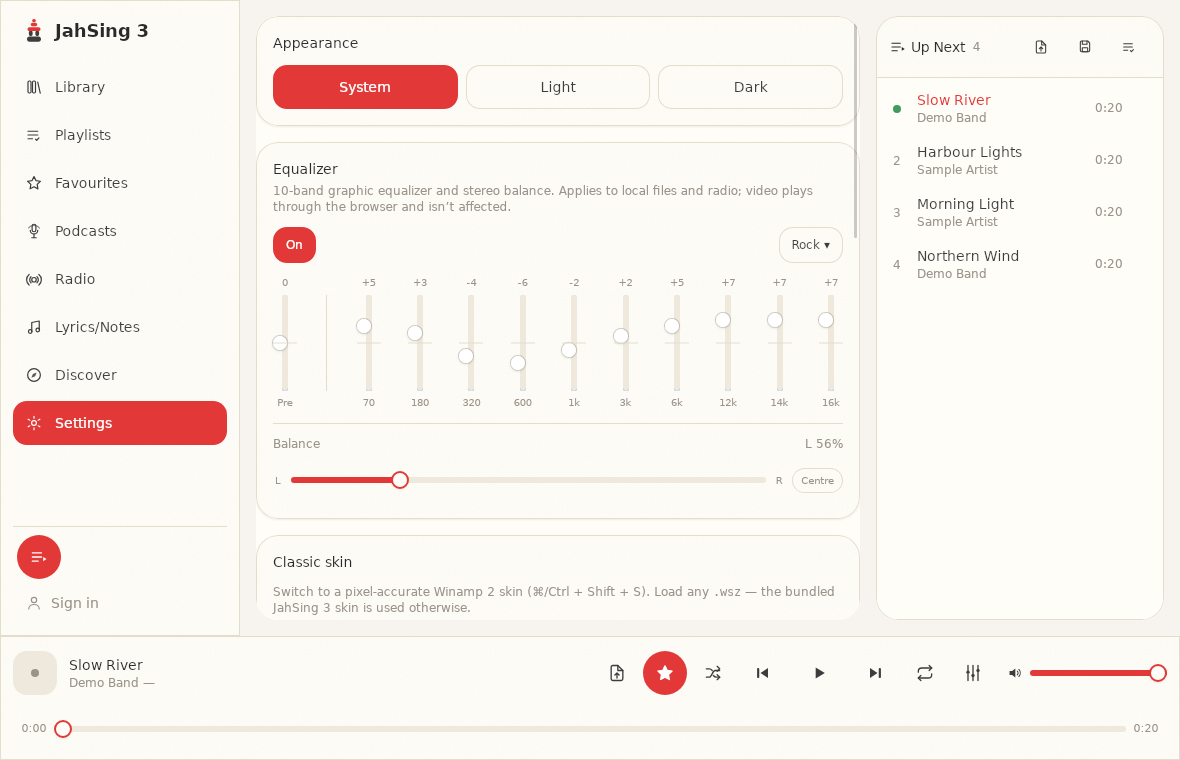
- The Settings page. In the Equalizer card, below the ten sliders, there is a row called Balance with a slider and a small Centre button.
- The equalizer pop-up. Click the equalizer button in the player bar (the one with three little sliders) and the same control appears at the bottom.
How to use it
- Play a song with a clear, steady sound. A solo voice or an instrument in the middle of the mix is ideal.
- Close your eyes and notice where the sound seems to sit. It should feel centered.
- If it leans to the left, move the Balance slider a little to the right, which lowers the left side. If it leans right, move it left.
- Make small moves. A few percent at a time is plenty.
- Stop when the sound feels centered.
The label above the slider tells you where you are. It reads “Centre” when both sides are equal, and shows a figure such as “L 20%” or “R 20%” when you have moved it. In JahSing 3, “L 20%” means you have shifted the balance toward the left side. (The control is sensitive, so go carefully.)
Going back to normal
The small Centre button next to the slider puts it back in the middle in one click. Use it whenever you change devices.
It stays set
This part is important. According to the project’s notes, the balance setting carries over from track to track, in the style of Winamp. So if you move it for one song, it stays that way for the next. That is handy for a lifelong correction, but it can surprise you. If you swap from your off-center speakers to a pair of headphones and everything sounds lopsided, the old balance setting is the likely culprit. Press Centre.
Is balance the same as the equalizer?
No. The ten equalizer sliders change the tone: bass, middle and treble. Balance changes the left-right level. They sit in the same card on the Settings page, and they work together, but they do different jobs. If you want to read more, see our beginner’s guide to the equalizer. The text on that page notes that the equalizer and balance apply to local files and radio, and that video plays through the browser and is not affected.
Balance cannot fix everything
- A broken earbud. If one side is very quiet or distorted, a balance adjustment will only hide the problem. Replace or repair it.
- A big difference between your ears. Balance helps with small differences. If one ear hears much less than the other, or if the difference is new, it is wise to have your hearing checked by a professional.
- Hard-panned recordings. Some albums put instruments entirely on one side by design. Shifting balance will not change that, and you probably would not want to.
- Different frequencies. If one ear misses certain tones more than others, balance is a blunt tool. The equalizer may help more, though both are limited.
A mono trick
Some old recordings are in mono, which means the same sound in both channels. If the balance seems wrong on every mono song but fine on stereo ones, it may be the hardware again. In a mono recording, both sides should be identical, so any difference you hear is coming from your setup.
A quick test for your own ears
Here is a simple way to see whether the difference is in the music or in you. Find a mono recording, such as an old radio program or a podcast with a single speaker. Sit at the center of your speakers or wear your headphones, close your eyes, and listen. A mono voice should sound dead center. If it leans to one side, either your setup is uneven, or one ear is more sensitive than the other. Use the balance control to bring it back to the middle.
In short
Balance is a small control with a quiet but useful job. Check the simple causes first, then use the slider in small steps and the Centre button to reset it. Remember that it stays set from song to song. You can download JahSing 3 from the Downloads page.
Sources: Stereophonic sound (Wikipedia); Panning (Wikipedia); JahSing Features; JahSing 3 migration notes and Settings page.