A Beginner’s Guide to the 10-Band Equalizer in JahSing 3
If you have ever turned the bass or treble knob on a stereo, you already know the idea behind an equalizer. An equalizer gives you more knobs, so that you can adjust different parts of the sound separately. JahSing 3 includes a 10-band graphic equalizer with a preamp. It looks like a row of sliders, and at first it can seem like a puzzle. This guide explains each control in everyday language and gives you a few safe moves to try.
What an equalizer does
All sound is made of vibrations, some slow and some fast. Slow vibrations are low sounds, such as a bass drum. Fast ones are high sounds, such as cymbals. An equalizer splits the sound into slices from low to high, and lets you turn each slice up or down. Turn the bass slice up and the music feels fuller. Turn the high slice down and a harsh recording sounds gentler.
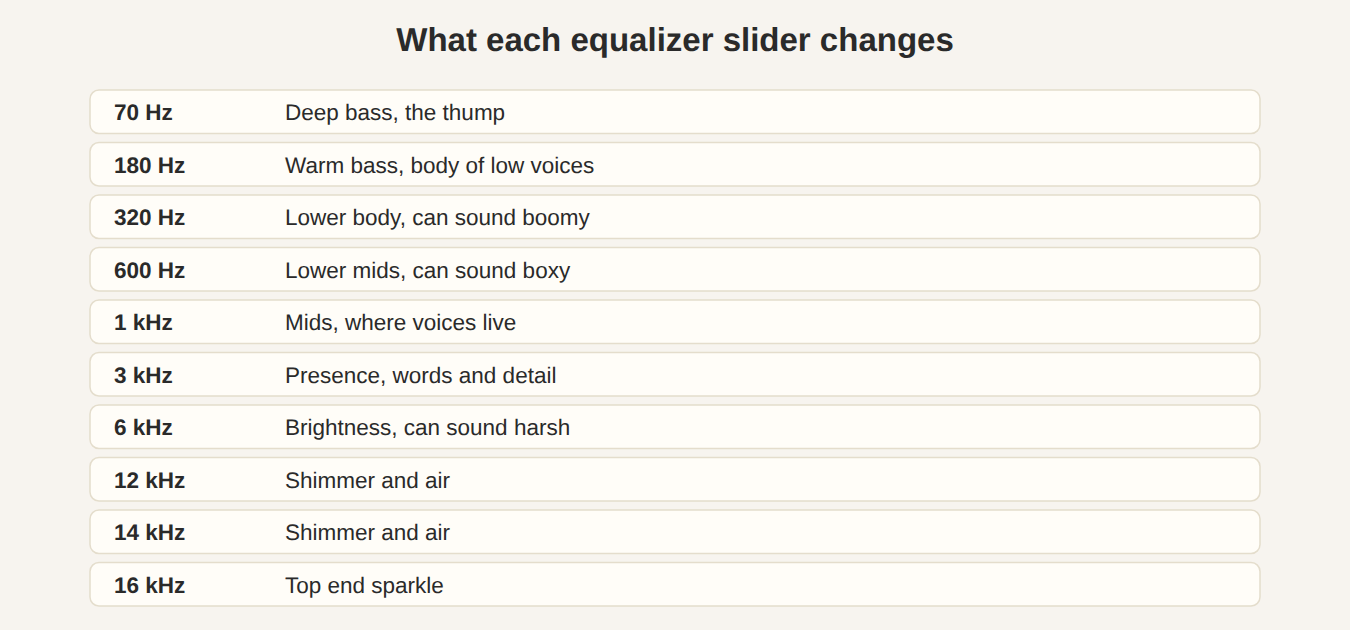
Each slice is called a band, and JahSing 3’s equalizer has ten of them. Each band is named for the middle of its slice, measured in hertz (Hz), which counts vibrations per second. A thousand hertz is written as 1k.
Where to find it
There are two places.
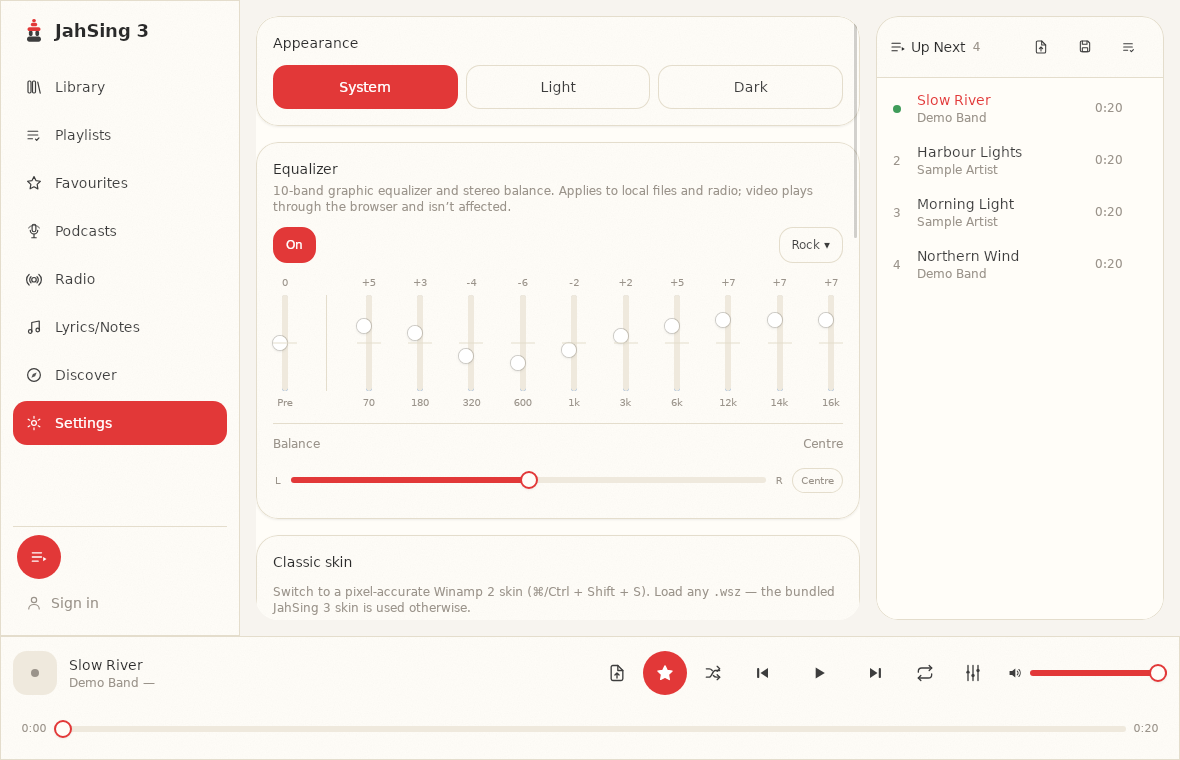
- The Settings page. Click Settings in the list on the left. The Equalizer card is near the top, under Appearance. It shows all ten sliders in full, plus a preset menu and the stereo balance control.
- The player bar. The small button with sliders on it, to the right of the repeat button, opens a compact equalizer pop-up that you can use while music plays, without leaving the page you are on.
Both control the same settings, so a change in one shows up in the other.
The controls, one by one
The On/Off switch
At the top left of the card is a switch that reads either Off or On. The equalizer starts switched off, so you hear the music exactly as it was recorded. Nothing you do to the sliders has any effect until you turn it on. The switch is also your best friend for comparing: flip it on and off while a song plays and you will hear exactly what your changes did.
The ten band sliders
Each slider has a number above it showing its current setting in decibels (dB), a measure of loudness. The middle of the slider is 0, which means “no change.” Push a slider up to boost that slice, or down to cut it. In JahSing 3, each slider moves between minus 12 and plus 12 dB.
The preamp (“Pre”)
The first slider on the left, labelled Pre, is not a band. It is a master level that goes before everything else. Think of it as a volume control for the equalizer’s input. It matters for one reason: boosting bands makes the overall sound louder, and if it gets too loud the sound can distort. Pulling the preamp down a little gives the boosts room to breathe.
The Presets menu
The button at the top right opens a list of ready-made settings, such as Rock, Classical and Pop. Choose one and all the sliders jump to the preset’s values. You can then adjust from there. When you do, the button shows the name of the last preset you picked. Our next article, on equalizer presets, goes through them in detail.
Balance
Below the sliders is a control called Balance, which shifts sound between the left and right speakers. It is not part of the equalizer’s ten bands, but it lives in the same card. We cover it in a separate article about fixing a lopsided speaker or earbud.
What the equalizer applies to
The text on the Settings page is clear: the equalizer applies to local files and radio. Video plays through the browser part of the app and is not affected. So if you find the sliders do nothing while you watch a video, that is why.
Safe first steps
Here are five easy things to try. Use a song you know well, and switch the equalizer on and off to compare.
1. Start with a preset
Presets are a gentle introduction. Try one that matches your music, listen for a minute, and then switch the equalizer off to hear the difference. If you like the preset, keep it. If not, go back to Flat.
2. Fix boomy bass
If the low end sounds muddy, with bass notes that smear together, try lowering the 180 and 320 Hz sliders a little, by 2 or 3 dB.
3. Add warmth to thin sound
If a recording sounds thin or tinny, nudge the 180 Hz slider up by 2 or 3 dB. That adds body.
4. Tame harsh treble
If cymbals or “s” sounds in voices hurt your ears, lower the 6k slider by 2 or 3 dB. Cheap earbuds and some older recordings often benefit.
5. Bring voices forward
If singers sound hidden, lift the 1k and 3k sliders by about 2 dB. These are the bands where voices and words live.
Rules of thumb
- Small moves win. Changes of 1 to 3 dB are plenty. Big boosts usually make things sound worse.
- Cut instead of boost when you can. If something sounds too bright, lower the highs rather than raising everything else. Cutting is less likely to cause distortion.
- If you boost, lower the preamp. A boost of 6 dB at some bands is a good reason to pull Pre down by a few dB.
- Trust your ears, not the picture. A curve that looks wild can sound fine, and a tidy one can sound bad. The goal is to enjoy the music.
- Let your ears rest. After a long session, things can seem dull. Take a break, then listen again.
- Your speakers matter. Small laptop speakers cannot reproduce deep bass, so boosting 70 Hz will do little but add distortion.
One setting for everything?
The equalizer is a single setting that applies to everything you play, as far as the controls show. A setting that flatters one album might not suit the next. If you find yourself changing it often, that is normal. Presets make it quick to switch, and the On/Off switch lets you drop back to the original sound at any moment.
In classic skin mode
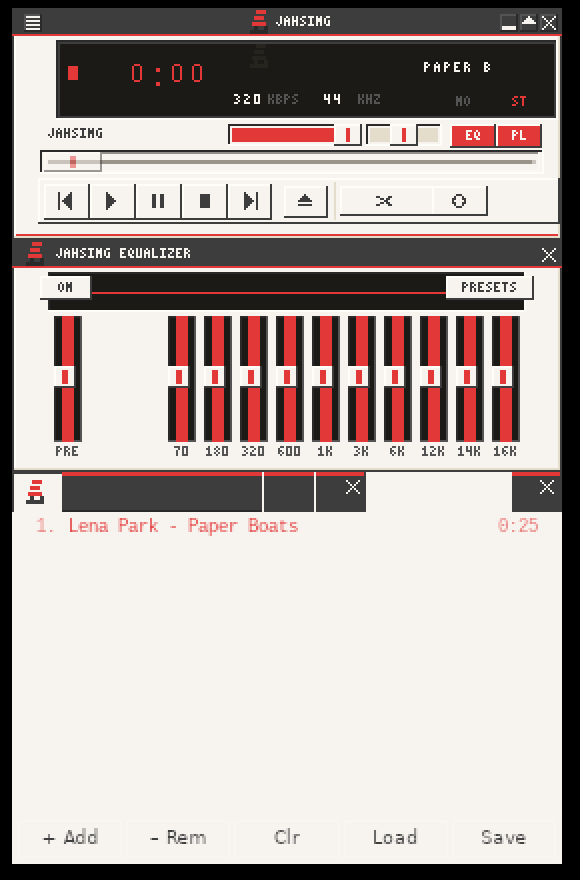
If you use JahSing 3’s classic Winamp-style skin mode, it has its own equalizer window, with ON and PRESETS buttons and the same ten bands plus a preamp. It is opened with the small EQ button on the main skin window.
In short
An equalizer is a set of tone controls. Switch it on, pick a preset, and make small changes by ear. Flip it on and off to check that you are improving things. JahSing 3 makes it easy to experiment, because the original sound is always one click away. You can download JahSing 3 from the Downloads page.
Sources: Equalization (Wikipedia); Graphic equalizer (Wikipedia); JahSing Features; the JahSing 3 app’s Settings page. Frequency descriptions are general rules of thumb.