Cleaning Up a Messy Library: A Weekend Tag Tidy-Up Plan
Everyone who has collected music for a long time has the same problem. Some songs say “Unknown Artist.” Some are called “Track 03.” An album shows up three times under three slightly different names. Fixing it all feels like a task for a month of evenings, so it never gets done. This guide offers a different approach: a simple two-day plan, with rules for deciding what to fix and when to stop. It uses JahSing 3’s Library page and Edit tags window, and you can adapt it to a library of any size.
First, set your expectations
You will not fix ten thousand songs in a weekend, and you do not need to. The aim is to fix the things that bother you most, in the order that helps most, and to set up habits so that the mess does not come back. Think of it as a spring clean, not a renovation. Our guide to fixing missing tags and album art covers the techniques. This plan is about organizing the work.
Before the weekend: 20 minutes of preparation
- Back up your music. Saving tags changes the files, so copy the whole music folder to another drive. This is the one step you should never skip.
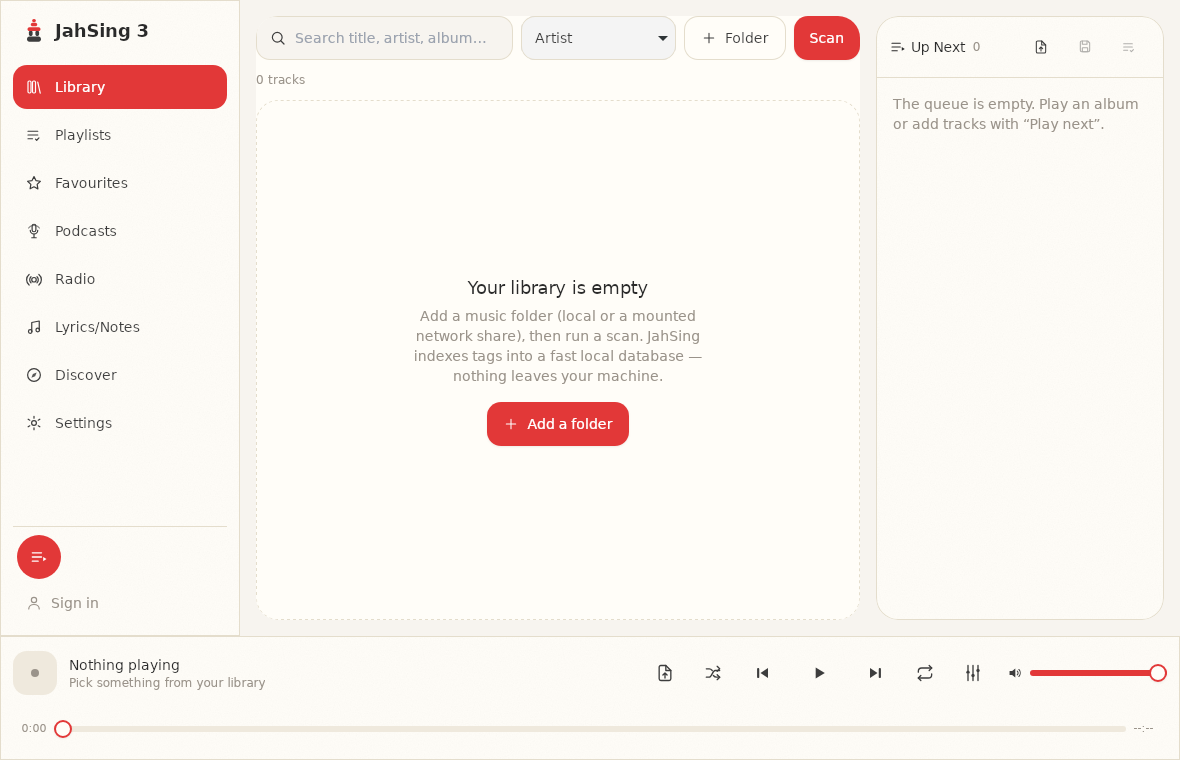
- Scan everything. Add all your music folders in JahSing 3 and press Scan. Check the “indexed X of Y files” line at the top, so you know the whole library is in.
- Write your rules. On a sheet of paper, decide how to write artist names (“The Beatles” or “Beatles”), whether to use “Various Artists” for compilations, which year to use (original or reissue), and your list of genres. Ten minutes of rule-making saves hours later.
Saturday morning: find the worst offenders (60 to 90 minutes)
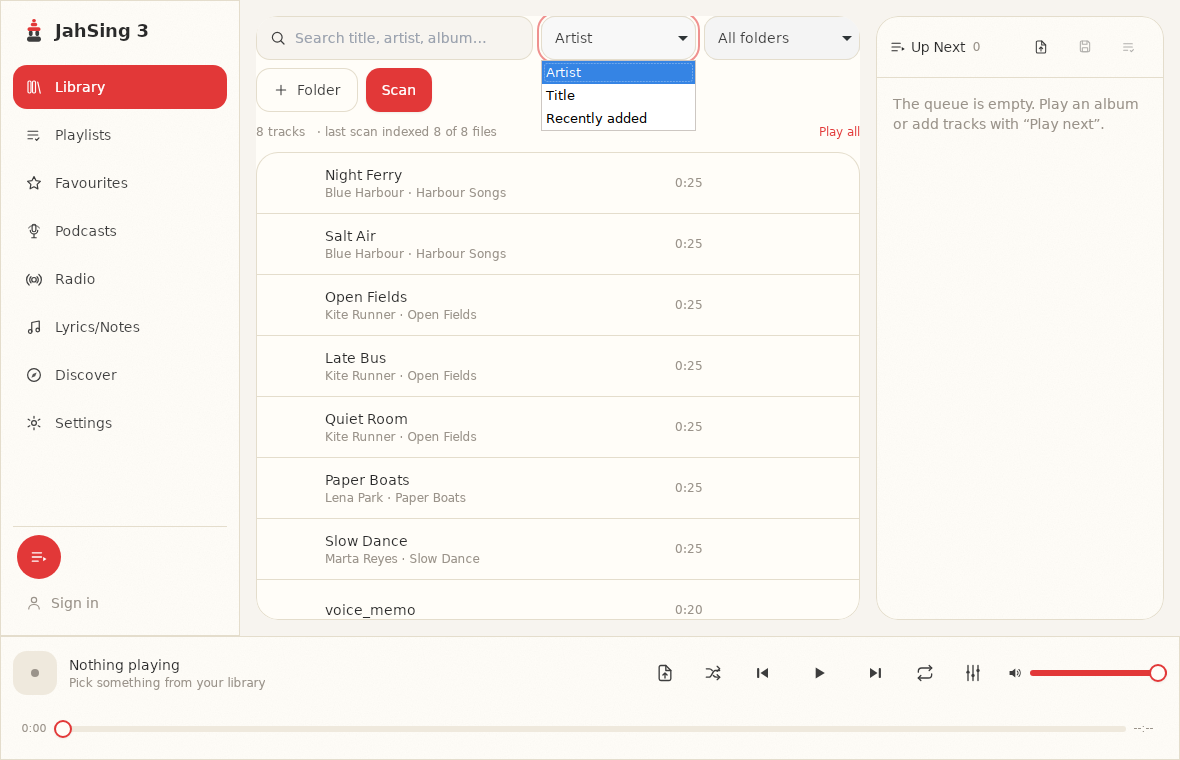
Do a survey before you start fixing. The goal is a short list of problems, ranked by how much they annoy you.
- Sort by title. Open the sort menu and choose Title. Songs with names like “Track 01” or “Untitled” cluster together.
- Sort by artist. Scroll through the list. Songs with no artist appear at the end, and you will spot near-duplicates such as “Beatles” next to “The Beatles.”
- Look at one source folder at a time. The folder menu lets you view a single folder. Old rips and downloads usually have different kinds of problems.
- Write down the top five problems. For example: “all my 1990s CD rips have no year,” “my downloads folder has 80 untitled tracks,” “three spellings of one artist.”
Saturday afternoon: fix by album, not by song (2 to 3 hours)
This is the main trick. Fixing songs one at a time is slow. Fixing an album at a time is much faster, because most of the fields are the same for every track.
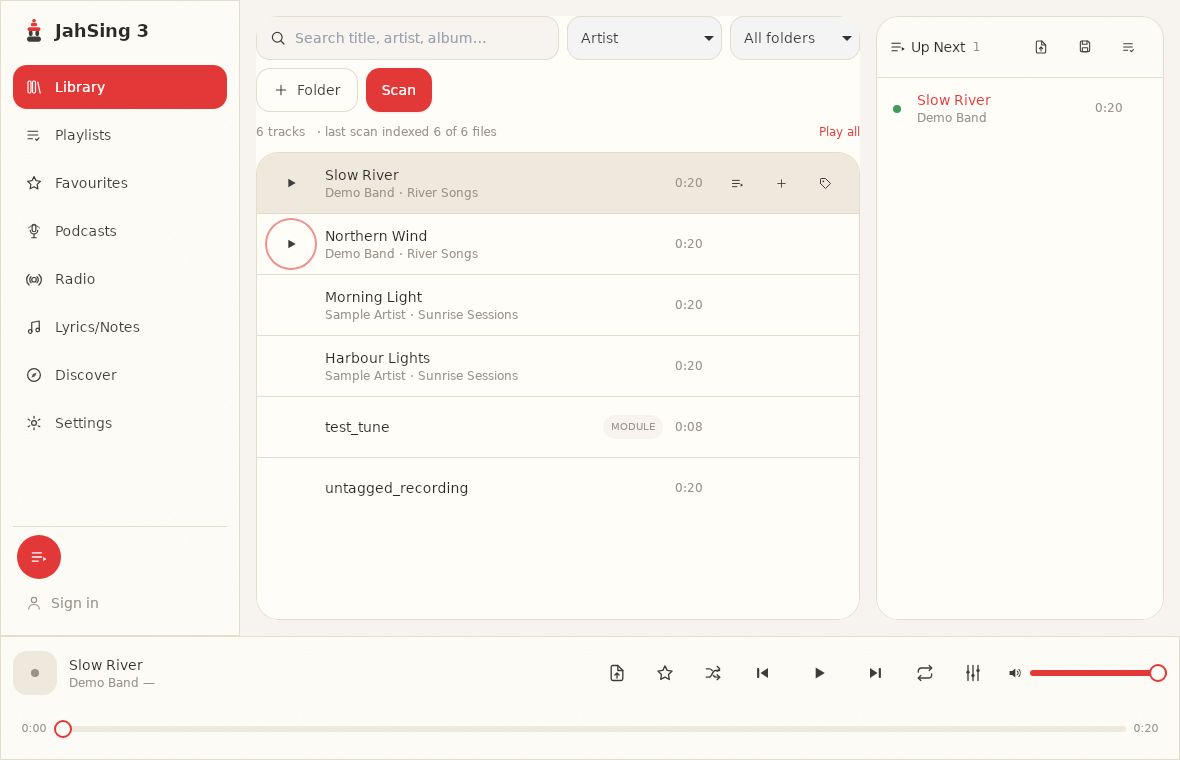
- Search for an album name in the search box, so only its tracks are shown.
- For the first song, press Edit tags. Fill in the album, album artist, genre and year.
- Check the title, artist and track number. Press Save to file.
- For each remaining song, open Edit tags, type the same album, album artist, genre and year, and then set the title and track number for that song.
- Play the album once through from the queue to check it sounds and reads right.
Start with the albums you play most. Ten well-fixed favorite albums are worth more than a hundred half-fixed ones.
Saturday evening: stop, and listen
Resist the urge to keep going. Tag work is tiring, and mistakes creep in when you are weary. Put on a playlist of the albums you fixed, and enjoy how much better your library looks.
Sunday morning: fix the near-duplicates (60 to 90 minutes)
Now tackle the consistency problems that make one artist look like several.
- Pick the correct spelling for each artist you noticed on Saturday.
- Search for each variant in the search box. All the matching songs appear.
- Edit the odd ones out, changing the artist field to your chosen spelling.
- Check compilations. For albums with many different artists, set the album artist to “Various Artists” on every track, so the album stays together.
Our article on genre, year and disc numbers explains why those smaller fields matter.
Sunday afternoon: the untitled pile (60 to 90 minutes)
Songs with no tags at all are the hardest, because you must find out what they are. A few approaches:
- Look at the filename. It often holds the artist and title, even if the tags are empty. Use it to fill in the fields.
- Look at the folder. A folder called “Dub Reggae Mix 2009” gives you the album and year.
- Listen. If you know the song, type its details in.
- Use an identification tool. Free programs can identify songs by their sound and fill in tags. MusicBrainz Picard is a well-known example. JahSing 3’s Pro version also lists song identification among its features.
- Give up on a few. Some recordings, such as voice memos or home demos, do not need full tags. A clear title is enough.
Sunday evening: set up the habits (20 minutes)
- Make a “To tag” folder. New downloads go there first. Fix them before moving them into the main library.
- Use the “Recently added” sort after each scan, to see only what is new.
- Keep your rules sheet. Stick it somewhere you can find it.
- Schedule a ten-minute check once a month.
A checklist you can print
- Backed up the music folder
- Scanned every folder and checked the file count
- Written down the naming rules
- Listed the top five problems
- Fixed favorite albums, one album at a time
- Merged artist spelling variants
- Set “Various Artists” on compilations
- Dealt with the untitled pile as far as practical
- Set up a “To tag” folder
Common stumbling blocks
- Edits seem not to show. After saving, the list should update. If something looks stale, press Scan again.
- Special characters look odd. This is usually an old tag in an older encoding. Retyping the text fixes it.
- Too much to do. Cut the scope. Do only favorites and the most recent downloads.
- Different players show different things. Some players read a different part of the file than others. Writing the tags into the file itself, which is what Save to file does in JahSing 3, is the safest choice.
In short
Back up, set rules, survey, fix by album, merge duplicates and build habits. Stop when you are tired. A tidy library is a pleasure to use, and it does not take a month to get there. You can download JahSing 3 from the Downloads page.
Sources: MusicBrainz Picard; JahSing Features; the JahSing 3 Library page and Edit tags window.