Where Cover Art Comes From: The MusicBrainz Cover Art Archive Explained
An album cover is half of the pleasure of a record. On a shelf it is the first thing you see, and in a music player it can make a library feel like your own. But when you scan a big folder of files, many of the covers are missing. Where do the good ones come from? This article explains how cover art is stored, where free pictures come from, and how to bring them into your files and into JahSing 3.
Where a cover can live
There are really two places to keep a cover picture.
- Inside each song file. The picture is stored in the song’s tag, along with the title and artist. We call this embedded art. It travels with the song, so any player that understands the tag can show it.
- As a separate picture file in the album’s folder, often called “cover.jpg” or “folder.jpg.” Some players look for this file and show it for every song in the folder.
Embedded art is the more portable choice, because the song carries its cover everywhere, but it also makes each file larger, since the picture is repeated in every track.
What JahSing 3 shows
JahSing 3 reads cover pictures that are stored inside song files. When it scans your music, it records whether each file has embedded art. A song with no picture inside simply has no cover to show. The tag editor in JahSing 3 covers title, artist, album, album artist, genre, year, track and disc numbers and comments, and does not include a picture field. So the practical way to get covers into your files is to add them with a tool made for that, and then let JahSing 3 read them on the next scan.
What is the Cover Art Archive?
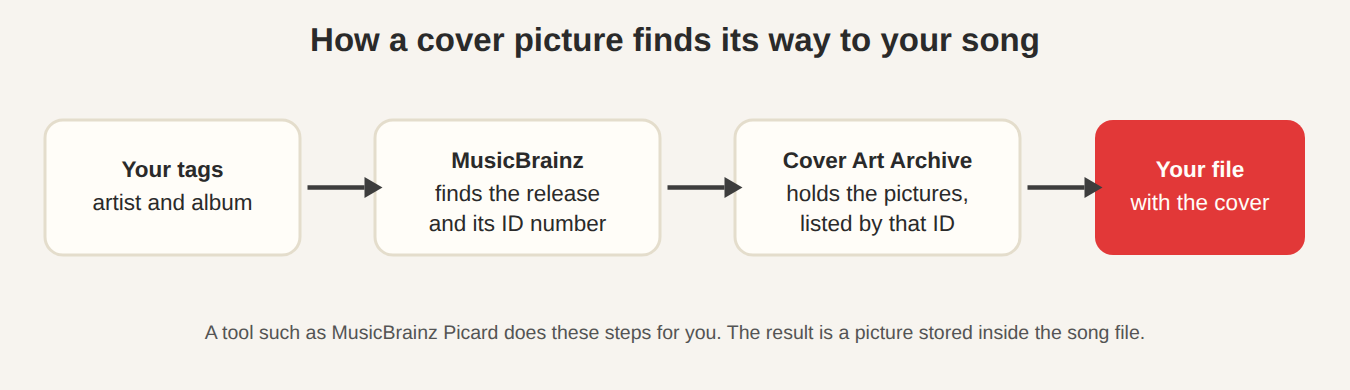
The Cover Art Archive is a free collection of cover images, run as a joint project of the Internet Archive and MusicBrainz. It was announced in October 2012, after collecting images since May that year. The division of work is neat:
- The Internet Archive, a non-profit digital library, provides the storage and bandwidth to hold the images.
- MusicBrainz, an open music database run by a non-profit, keeps the information about which album each picture belongs to, and offers a way for other programs to ask for it.
- Volunteers upload the pictures and review each other’s work. The archive describes its images as curated by the MusicBrainz community.
Pictures are filed by release, meaning one specific edition of an album, each with an identification number. The archive says that, by the end of 2012, it already held nearly 140,000 pieces of cover art, and it kept growing from there.
Why it is a good source
- It is free and open. Anyone can look up pictures without paying or signing up for a shop.
- It is edition-specific. Because pictures belong to a particular release, you can get the right cover for your pressing, rather than a generic one.
- It is checked by people. Volunteers review uploads, which helps keep out spam and poor-quality images.
- It does not belong to one company. Services that depend on a single shop, as JahSing 2’s Amazon feature did, can disappear overnight.
How to get a cover into your files
The simplest route is a free tool that knows how to talk to MusicBrainz. MusicBrainz Picard is the project’s own tagger. In outline, it works like this:
- Open Picard and add your album folder.
- Let it match the files to a release in the MusicBrainz database, using the existing tags and the sound of the songs. You check the match.
- Picard fills in correct tags and, if it finds a picture in the Cover Art Archive, it downloads it.
- Save. The tags and the picture are written into your files.
- Back in JahSing 3, press Scan. It reads the updated files, including the embedded picture.
Other tools can add pictures too. Many tag editors let you attach an image by hand. If you have a good scan of your own CD booklet, that works well.
Picking a good picture
- Size. A picture of 500 to 1000 pixels on a side looks sharp on most screens without bloating the file. Huge pictures multiply across every track.
- Shape. Album covers are square. Make sure the picture is not stretched.
- Format. JPEG is the usual choice for photos. PNG suits flat graphic covers.
- The right edition. Pick the front cover of the same release you own, not a different reissue.
A word about rights
Cover images are artwork, and they belong to the artists and labels. The Cover Art Archive hosts them so that people can identify and display the albums they own, and its guidelines cover what may be uploaded. For personal use in your own library, that is the normal and accepted purpose. If you plan to publish covers, for example on a website, check the terms and permissions first.
Troubleshooting
- No picture shows after tagging. Scan again, so JahSing 3 re-reads the files.
- Picard cannot find a match. Check the album and artist names. If your edition is rare, the album may not be in the database. You can add it yourself, as it is a community project.
- The wrong cover. There may be several editions with different pictures. Pick the one that matches yours.
- Files got much bigger. You probably embedded large pictures. Resize and replace them.
In short
Covers live either inside your files or beside them. The Cover Art Archive is a free, community-checked source of pictures, hosted by the Internet Archive and indexed by MusicBrainz. A tool such as Picard can fetch them and write them into your files, and JahSing 3 will show them after a scan. You can download JahSing 3 from the Downloads page. For the wider tag-repair process, see how to fix missing tags and album art.
Sources: Cover Art Archive (MusicBrainz documentation); Announcing the Cover Art Archive (MusicBrainz blog, 2012); coverartarchive.org; MusicBrainz Picard; JahSing 3 migration notes and Edit tags window.