Keyboard Shortcuts and Media Keys: Controlling JahSing Without the Mouse
Music is something you want to control without a fuss. You are cooking, typing or working, and a song comes on that you want to skip. Keyboard shortcuts are the fastest way to do that. This article lists the shortcuts that allow you to navigate JahSing 3, organized by where they work, with tips on using them.
How shortcuts work in JahSing 3
A few ground rules apply everywhere:
- Typing comes first. If the cursor is in a text box, such as the search box, shortcuts are ignored so you can type normally. Click out of the box first.
- Ctrl and Command are treated the same. A shortcut written as Ctrl on Windows and Linux works with the Command key on a Mac.
- Letters do not depend on capitals. Press “f,” not Shift+F, unless a shortcut says Shift.
- Each part of the app has its own set. The main window, classic skin mode and the video window each listen for their own keys.
In the main window
The main window has two shortcuts that work anywhere:
| Keys | What it does |
|---|---|
| Ctrl + Shift + S | Switch classic skin mode on or off |
| Ctrl + Shift + V | If a video is playing, pop it out into its own window, or bring it back in |
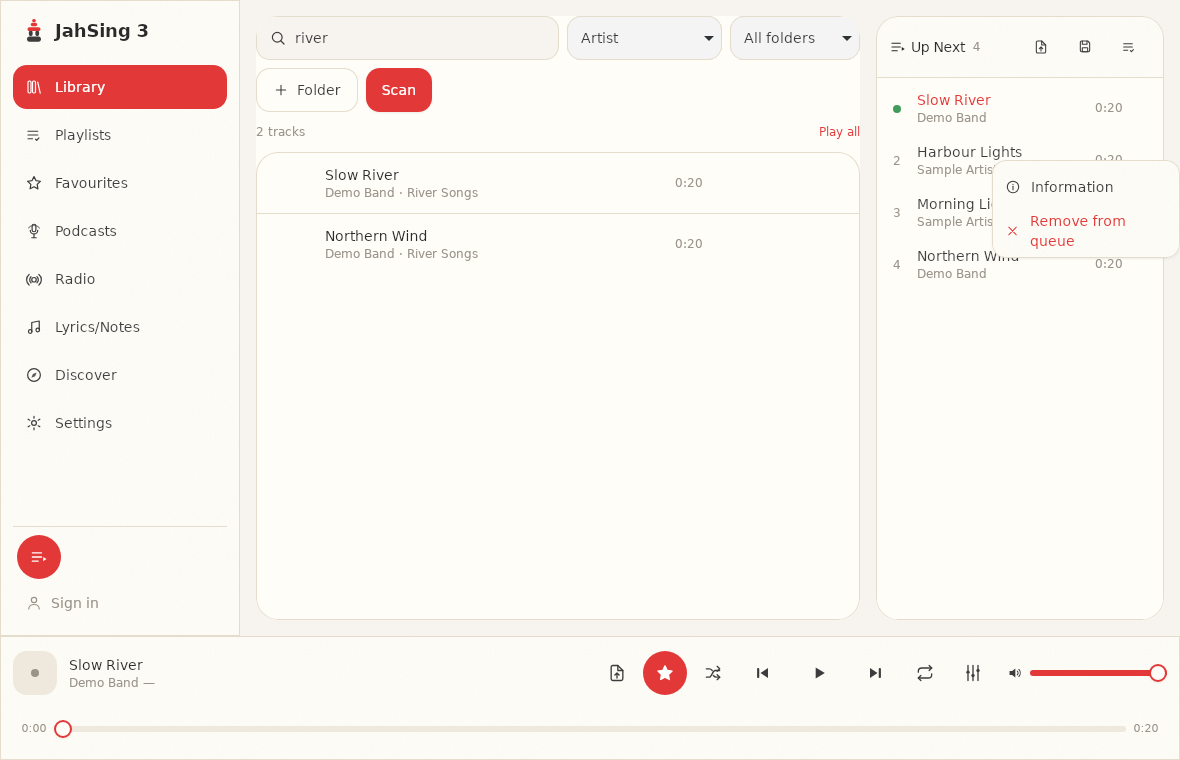
Honestly, that is the full list of global shortcuts we found for the regular window. The rest of the main window is operated with the mouse: the player bar has buttons for play, previous, next, shuffle, repeat, the equalizer and volume. That may change in later versions, so check the project’s release notes. In the meantime, a good way to get quick control is skin mode, described next.
In classic skin mode
Classic skin mode, switched on with Ctrl + Shift + S, has a much richer set of keys, inspired by Winamp. If you ever used that player, your fingers may remember them.
| Key | What it does |
|---|---|
| Space | Play or pause |
| X | Play or pause |
| C | Play or pause |
| Z | Previous song |
| B | Next song |
| V | Stop |
| Up arrow | Volume up a little (5 percent) |
| Down arrow | Volume down a little (5 percent) |
| Right arrow | Jump ahead 5 seconds |
| Left arrow | Jump back 5 seconds |
| D | Switch between the full window and the compact “windowshade” version |
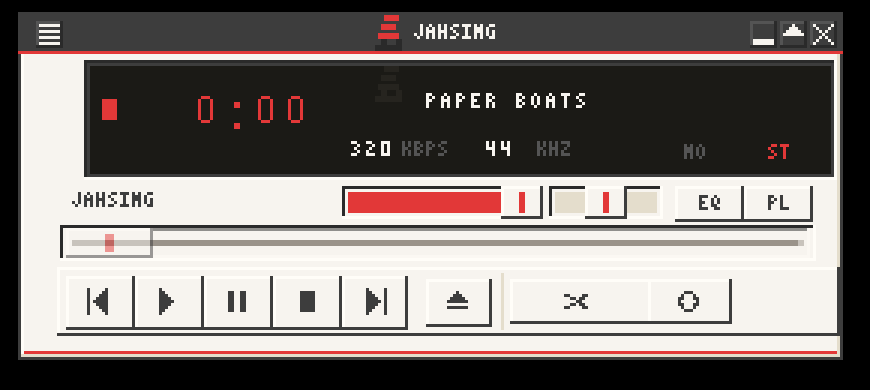
Pressing the key that Winamp users know best, Z for previous, X for play, C for pause, V for stop and B for next, gives you the whole set in a row of five keys on the left of your keyboard. In JahSing 3, X and C both toggle between play and pause, so each acts as a “play or pause” key rather than separate play and pause commands.
In the video window
When a video is popped out into its own window, that window listens for its own keys:
| Keys | What it does |
|---|---|
| Space or K | Play or pause |
| F | Full screen on or off |
| M | Mute or unmute |
| Left or Right arrow | Back or ahead 5 seconds |
| Shift + Left or Right arrow | Back or ahead 10 seconds |
| Up or Down arrow | Volume up or down a little |
| Escape | Leave full screen; if not in full screen, put the video back in the main window |
| Ctrl + W | Put the video back in the main window |
| Ctrl + M | Minimize the video window |
Our guide to the pop-out video window covers the rest of how video works.
Media keys on your keyboard
Many keyboards, laptops and headsets have dedicated keys for play, pause, next and previous. They are separate from the letter keys, and they are meant to work even when the program is in the background. The JahSing 3 Features page lists “media keys and hotkeys, including OS-level media integration” as part of the player. We could not confirm this ourselves, because our test machine has no sound hardware or physical media keys, so if the media keys do not respond on your computer, please let the project know. Your operating system also plays a part. Some systems send media key presses to whichever program last played sound, or to a program that has registered with the system, and others need the program to be in the foreground.
Tips for faster control
- Use skin mode as your remote. If you want the full set of keys, switch to classic skin mode and keep it in a corner of the screen.
- Remember the search box rule. If a shortcut seems dead, check that the cursor is not in a text box.
- Use the mouse for the rest. The main window’s buttons are big and clear. Hover over a song to see its play, queue and tag buttons.
- Combine with the queue. Line up an evening of music, and then you need only a few keys all night. See our guide to using the queue.
A quick cheat sheet
- Skin mode on or off: Ctrl + Shift + S
- Video out or in: Ctrl + Shift + V
- In skin mode: Space play or pause, Z previous, B next, V stop, arrows volume and seek, D compact
- In the video window: Space play or pause, F full screen, M mute, Esc back
In short
JahSing 3’s richest keyboard control lives in classic skin mode and the video window. The regular window has two global shortcuts and otherwise relies on the mouse. If your media keys do not respond, now you know where things stand. You can download JahSing 3 from the Downloads page.
Sources: JahSing Features; the JahSing 3 app’s keyboard handling (skin mode, video window and main window), reviewed for this article. Skin-mode and video-window keys were read from the app’s code rather than tested key by key.