How to Fix Missing Song Tags and Album Art in a Big Music Collection
You open your music library and it looks like a yard sale. Half the songs say “Unknown Artist.” A few are called “Track 01.” Some albums show a grey box where the cover should be. If that sounds familiar, you are not alone, and the fix is easier than it looks.
This guide explains what is going wrong, why it happens, and how to repair a big collection without losing a whole weekend. We will also show where JahSing 3 fits in.
First, what is a “tag”?
Every song file has two parts. One part is the sound itself. The other is a small label stuck onto the file, called a tag. The tag holds the title, the artist, the album, the year, the track number and sometimes a picture of the cover.
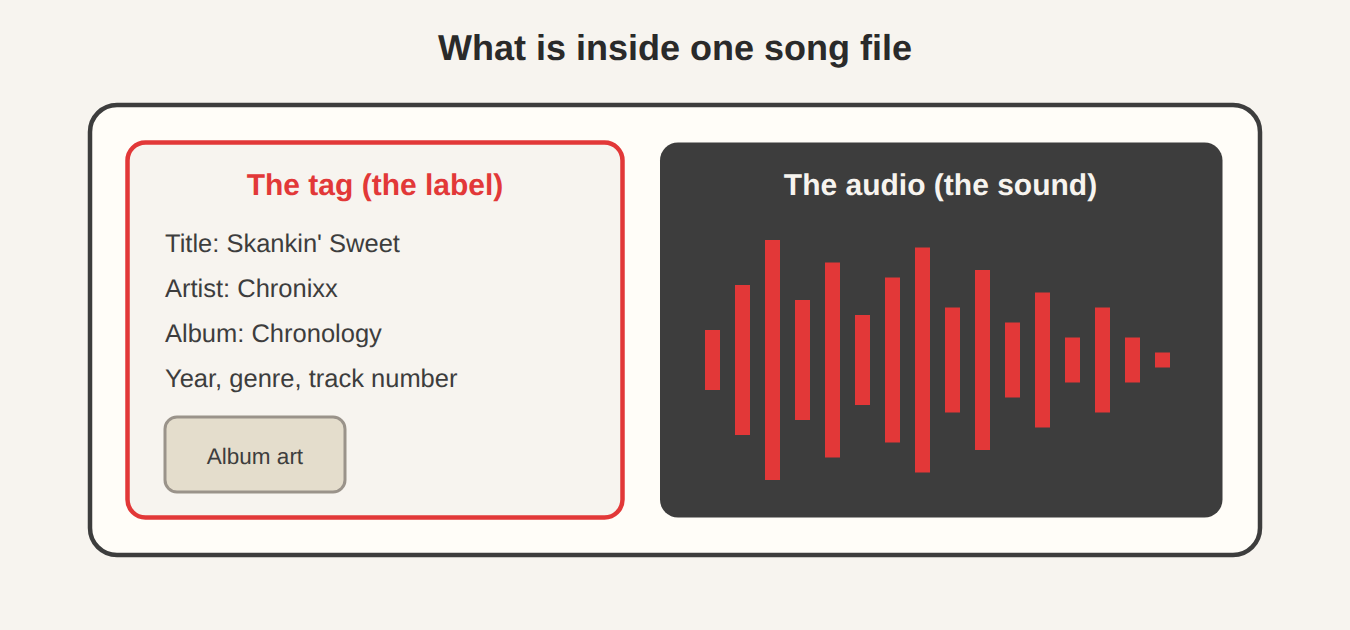
For MP3 files, the most common label style is called ID3. Other formats, like FLAC and M4A, use their own styles, but the idea is identical. Your player reads the label and shows you the words and the picture. If the label is empty or wrong, the player has nothing to show.
Why do tags go missing?
A few common reasons:
- Old rips. Songs copied from CDs years ago, with a program that never looked up the names.
- Downloads from odd places. Files shared around the internet often carry sloppy labels, or none.
- Recordings you made yourself. A voice memo or a live recording starts with a blank label.
- Different spellings. “Bob Marley”, “Bob Marley & The Wailers” and “Marley, Bob” count as three different artists to a computer.
Step 1: Decide what “fixed” looks like
Before you touch a file, write down your rules. It takes five minutes and saves hours. Pick one way to write artist names. Decide whether you want years on every song. Decide if compilations get “Various Artists” as the album artist. A tidy library is a consistent library.
Step 2: Make a backup
Editing tags changes the files themselves. Copy your music folder to another drive before you start. If something goes sideways, you can put it back.
Step 3: Let the computer do the heavy lifting
If you have hundreds of songs, typing every label by hand is out of the question. This is where free tools that work by listening shine. The most popular is MusicBrainz Picard, a free, open-source tagger from the MetaBrainz Foundation.
Picard can recognise a song by its sound, in the same way a music-ID app does. It makes a short “fingerprint” of the audio and asks a public database, AcoustID, which song that fingerprint belongs to. It then fills in the label from MusicBrainz, a huge community-run music database.
The Picard guide recommends working in batches of about 200 files at a time so your computer does not slow to a crawl. You can read their step-by-step workflow for files with little or no existing information. In short:
- Drag a batch of songs into Picard.
- Choose Cluster or Scan so it can group and identify them.
- Check the matches it finds. Fix anything that looks odd.
- Press Save, and Picard writes the new labels into the files.
Step 4: Get the album art
Album covers can live in two places. They can be stored inside each song file, or sitting beside the songs as a picture file in the album folder. Many players, including JahSing 3, can show a cover that is stored inside the file. JahSing 3 also notes which songs have art inside them, so it knows when a cover is present.
For finding covers, there is a free source called the Cover Art Archive. It is a joint project of the Internet Archive and MusicBrainz, and the pictures are checked by the MusicBrainz community. Picard can pull covers from it as it tags your songs, so you get words and pictures in one pass.
A friendly tip: very large cover images make every song file bigger. A square picture of around 600 to 1000 pixels looks great and keeps files small.
Step 5: Tidy the leftovers in JahSing 3
No automatic tool gets everything right. Live bootlegs, rare records and home recordings often stay unmatched. That is where a friendly player earns its keep.
JahSing 3 is a music player and library manager, and it includes a built-in tag editor. Open your library, pick a song, and choose the Edit tags button on its row. A form appears with the title, artist, album, album artist, genre, year, track number, disc number and a comment box. Press Save to file and the label is written straight into the song.
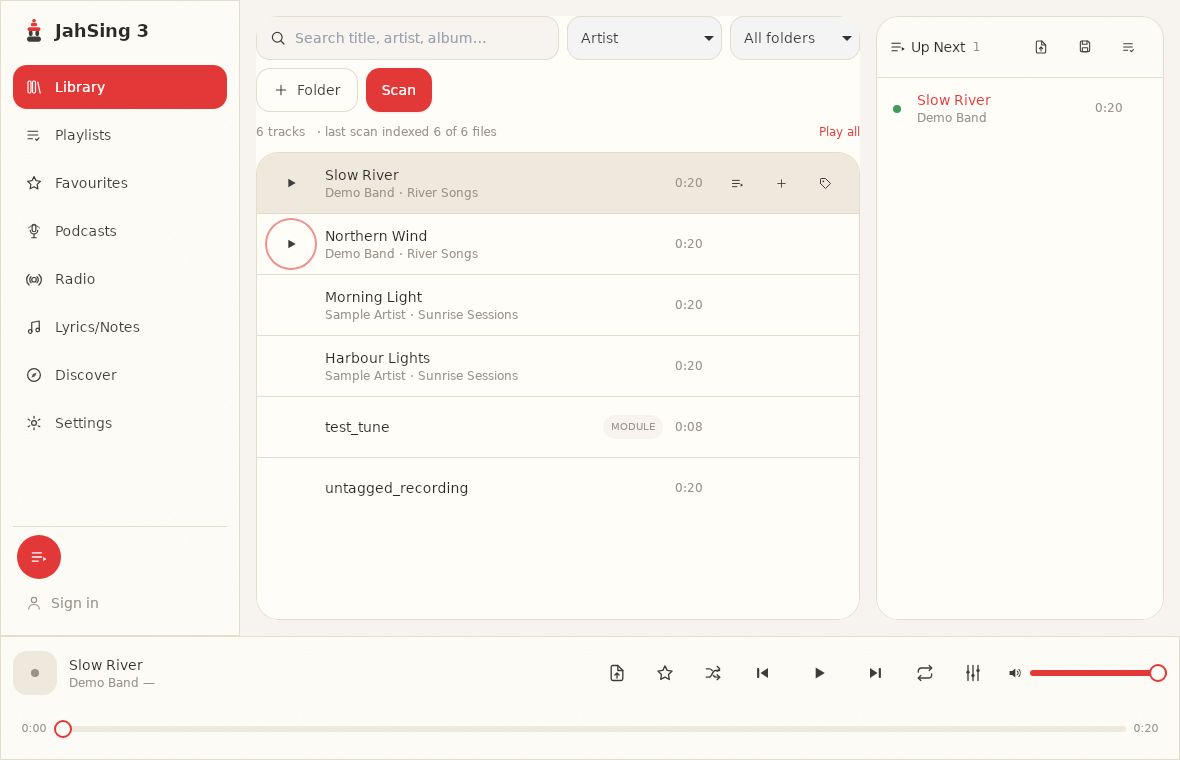
JahSing 3 reads and writes the common label styles for MP3, FLAC, Ogg and M4A files, so you do not have to think about which kind a song uses. The player also has an Identify song feature for tracks the app cannot name, which uses the same audio fingerprint idea described above. Identify song is part of JahSing Pro.
To be straightforward about it: the tag editor works on one song at a time. For a big first clean-up, run Picard on batches, then use JahSing 3 for the odd songs that remain. That mix is quick and reliable.
A simple routine that works
- Back up your music folder.
- Write down your naming rules.
- Run Picard on batches of about 200 songs.
- Let it fetch covers from the Cover Art Archive.
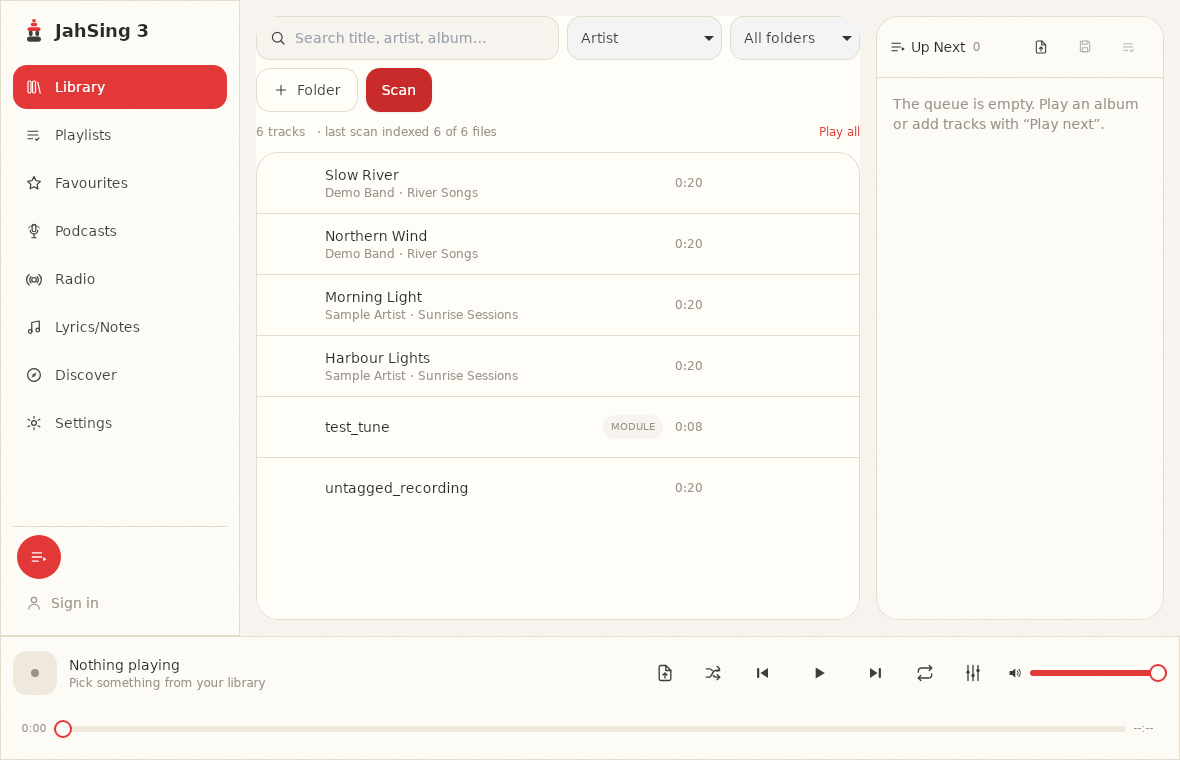
- Open JahSing 3, scan your folder, and fix the strays with the tag editor.
- Keep new music tidy from the start by tagging it when it arrives.
A few cautions
Automatic matches are good, not perfect. Different releases of the same album, such as a remaster or a deluxe edition, can share songs, and the tool may pick the wrong one. Take a quick look before you save. And if a song is a rare version, a manual edit is the safest choice.
Done once and done well, a tidy library pays you back every day. Search works, shuffle makes sense, and every album shows its cover.