M4A and ALAC: Rescuing Your Old iTunes Library
Many people spent years building a collection in iTunes. The songs are probably still there on a hard drive, even if you no longer use iTunes, or if the program has changed names on your computer. This guide helps you get that collection into JahSing 3. It covers where the files live, what the .m4a ending really means, what moves across easily and what does not.
Step one: find the music files
iTunes keeps your songs in ordinary folders. On many computers, you will find them inside your Music folder, in a folder called iTunes, and then another one named iTunes Media (or just Media, if you used the newer Apple Music app). Inside, songs are arranged by artist and album. The folder names can differ between setups, so if you cannot find them, open iTunes or the Music app, right-click a song, and look for an option such as “Show in Finder” or “Show in Windows Explorer.” That will take you to the exact place.
Before you do anything else, it is wise to make a backup copy of the whole folder. You are only going to read from it, so nothing should change, but a backup removes any worry.
Step two: understand what .m4a means
This is the part that confuses people. A file ending in .m4a is a container, a bit like a box, and the box can hold two very different kinds of sound:
- AAC, a lossy format. This is what songs bought from the iTunes Store usually are, and what iTunes creates when you rip a CD with its default settings.
- ALAC, Apple’s lossless format. The files hold every detail of the original CD, and they are much bigger.
Apple introduced its lossless encoder in 2004 and released it as open source in October 2011, as this overview explains. Both kinds use the same .m4a ending, so you cannot tell them apart by name.
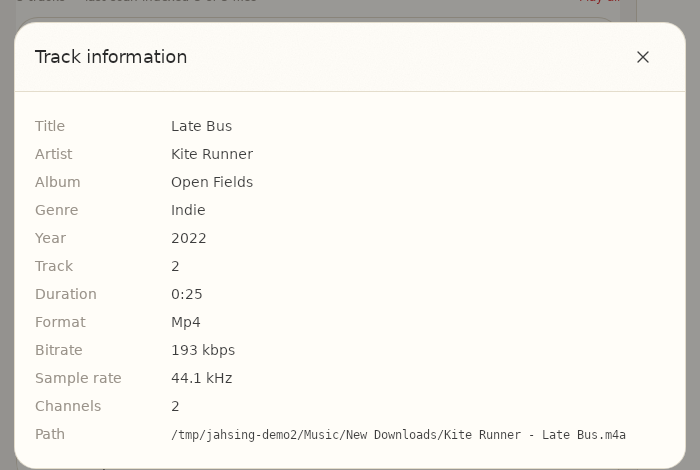
JahSing 3 plays both. You can tell which you have by size and by the bitrate shown in the Track information window. An AAC file is typically a few hundred kbps or less, while a lossless one is much higher. Below is a sample AAC file made for this article.
Step three: add the folder to JahSing 3
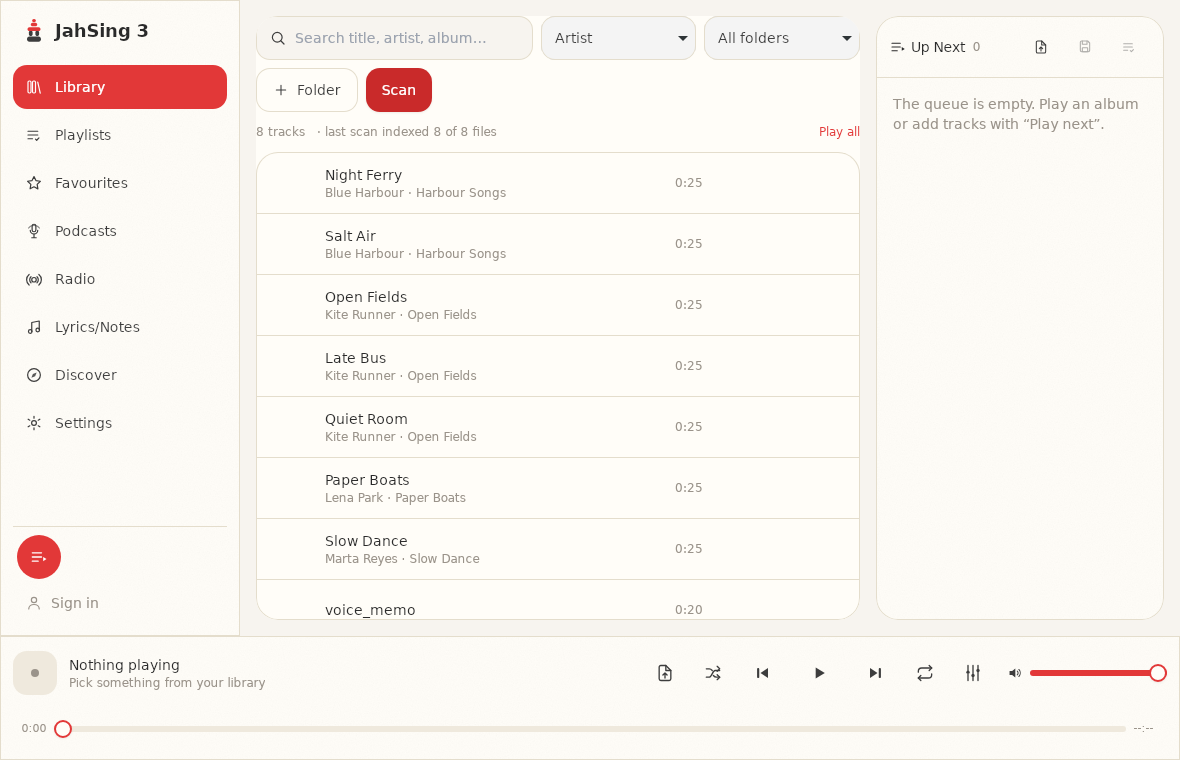
- Open JahSing 3 and go to the Library page.
- Click Folder and choose your iTunes Media folder (or the Music subfolder inside it if you only want songs).
- Click Scan. A scan of a large library can take a while the first time. When it is done, JahSing 3 shows how many files it indexed.
JahSing 3 will not move, rename or change your files. It reads them and builds its own index. If you later fix tags in the editor, that does change the file, so use the backup if you want to keep an untouched copy.
What comes across, and what does not
Comes across: the songs themselves, and the labels inside the files. Title, artist, album, genre, year and track number are stored in the file, so JahSing 3 reads them directly. Embedded cover art is read too.
Does not come across on its own:
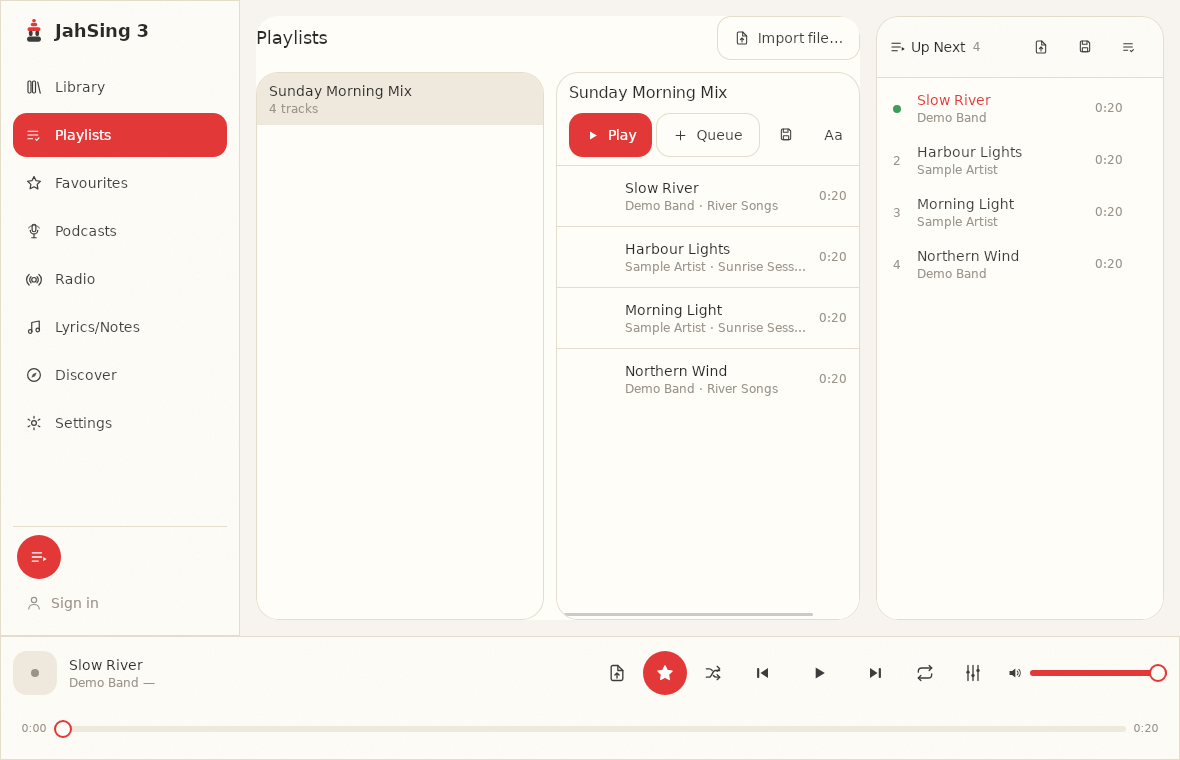
- Playlists. These live in iTunes’ own database, not in the song files. You can export a playlist from iTunes as a standard playlist file (look in the File menu, under Library, for Export Playlist, and choose an M3U type if offered) and import it from JahSing 3’s Playlists page using the Import file button.
- Play counts, ratings and “last played” dates. These also live in the iTunes database.
- Anything copy-protected. Songs bought from the iTunes Store before Apple dropped copy protection used a protected version of the format, usually ending in .m4p. JahSing 3’s scanner does not list that ending in its supported types, so protected files will not show up. Apple began selling DRM-free music in 2007 and, in April 2009, dropped copy protection across the store, so many of those older purchases can be replaced with unprotected versions through Apple’s own tools.
Checking for problems after the scan
Once the scan has finished, a few quick checks are worth doing:
- Count. Compare the number of songs JahSing 3 reports with what you expected. If many are missing, check whether they are protected files.
- Search. Type a favorite artist into the search box and make sure their albums appear.
- Pick a few albums. Play a track or two from several different artists to make sure sound and tags look right.
- Look for blanks. Songs with no artist or album will sort oddly. Our guide to fixing missing tags and album art explains how to repair them.
Should you convert the lossy files?
No. If your library is full of AAC files, play them as they are. Converting lossy files to another format will not improve their sound. It only creates a second copy and can add more loss. Keep what you have, and use lossless only for new rips where you have the original disc.
A fresh start with your old music
Moving away from iTunes does not mean leaving your music behind. Your songs are ordinary files that belong to you, and a local-first player like JahSing 3 can read them without any special software or account. You can download it from the Downloads page.
Sources: Apple Lossless Audio Codec (Wikipedia); Apple Lossless codec goes open source (MacTech, 2011); iTunes drops DRM from music (TidBITS, 2009); JahSing Features.