Searching a Large Library: Finding Any Song Fast
A small music collection is easy to browse. A big one is another matter. Once you have five thousand songs, or fifty thousand, scrolling is slow and frustrating. The good news is that JahSing 3 is built to find things quickly. This guide covers what the search box looks at, how to combine it with sorting and the folder filter, and a few habits that make every search better.
Why search is fast
When you scan a folder, JahSing 3 reads the details of every song once and stores them in a small database on your own computer. When you search later, it does not have to open any music file. It simply looks through that database. The project’s notes describe this as a deliberate change from JahSing 2, which re-read tags whenever it needed them. Because everything is local, search does not need the internet.
The search box
At the top of the Library page is a search box that says “Search title, artist, album…”. Type a few letters and the list narrows as you go. You do not need to press Enter or choose a category.
As the placeholder says, it looks at three things: the song’s title, the artist and the album. A match in any one of them keeps the song in the list. In our sample library, typing “river” finds two songs: one called “Slow River,” and another called “Northern Wind,” which is on an album called “River Songs.”
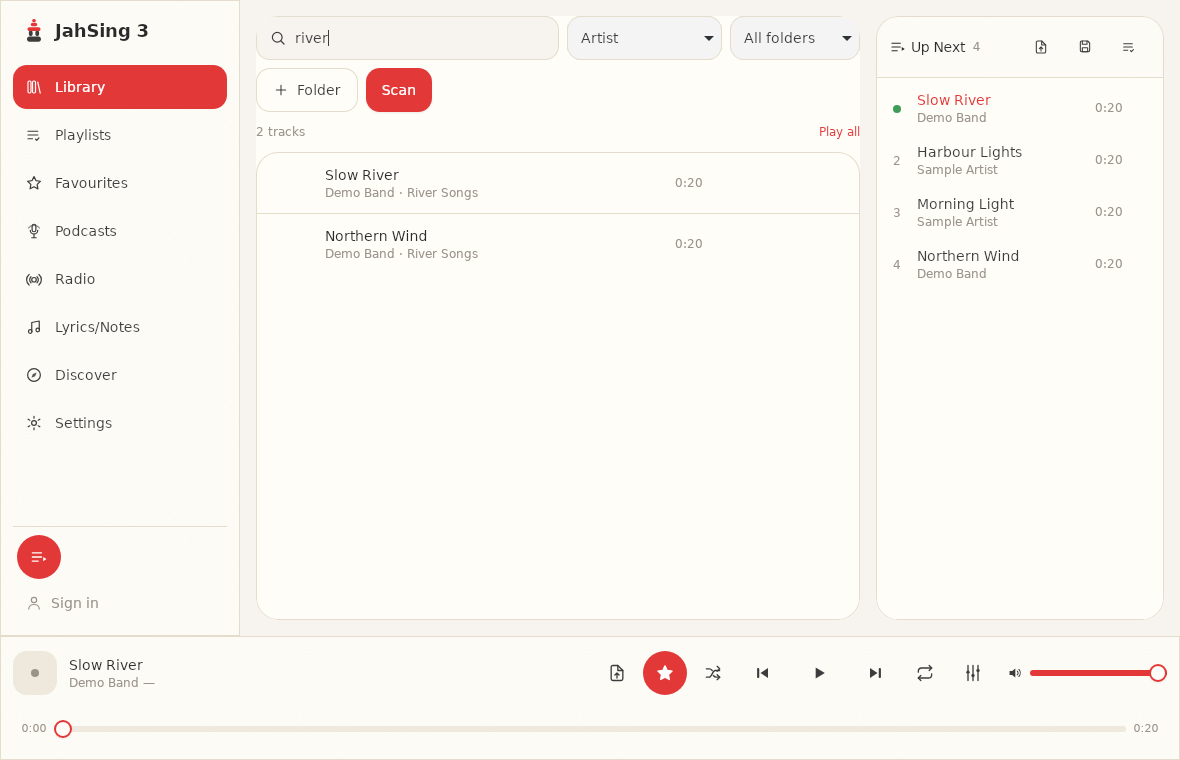
The count under the search box tells you how many tracks match, which helps you see at once whether your search is too broad.
Search tips
- Start short. A few letters of a word are usually enough, and a shorter search is less likely to be derailed by a spelling slip.
- Use the word you are sure of. If you remember the album name but not the song, search for the album. All its songs appear together.
- Search for an artist to see everything they made. Then use sorting to arrange the results.
- Clear the box to see the full list again.
Sorting
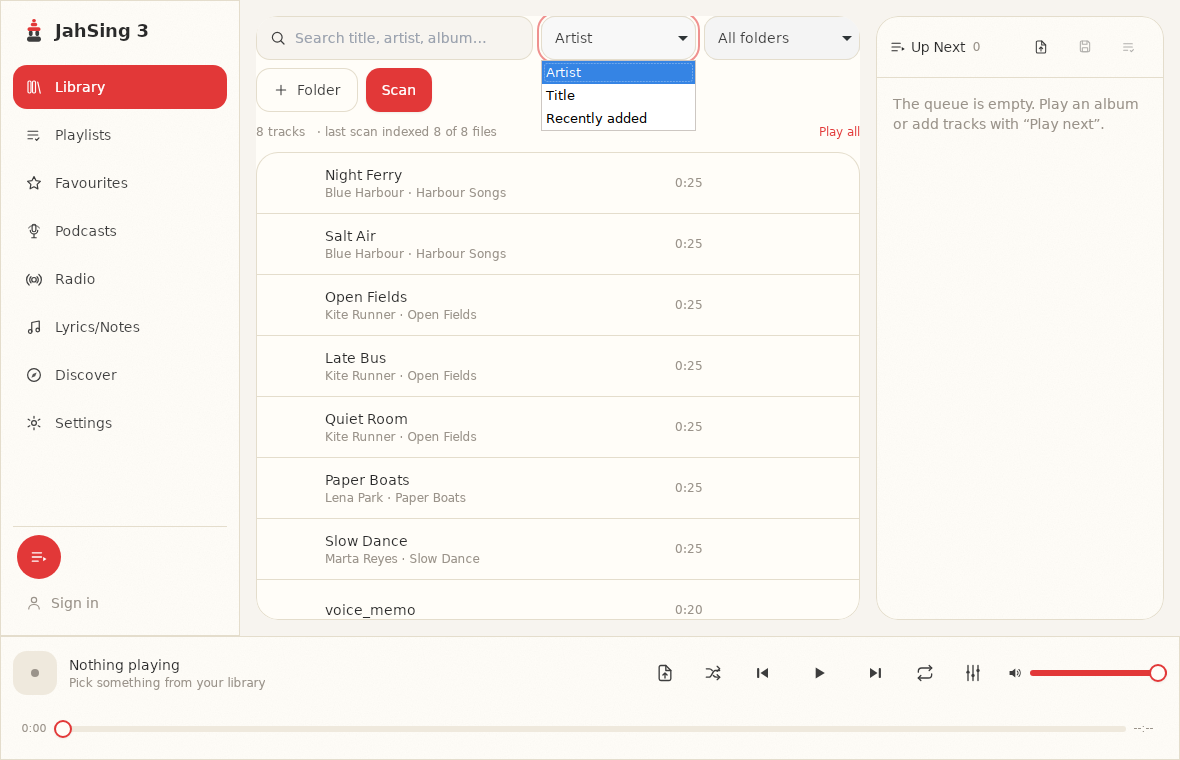
Next to the search box is a sort menu. It offers three choices:
- Artist: groups songs by artist name. This is the default.
- Title: puts songs in alphabetical order by title.
- Recently added: shows the newest additions first.
“Recently added” is a favorite for catching up on new downloads. After a scan, switch to it and your latest songs sit at the top.
The folder filter
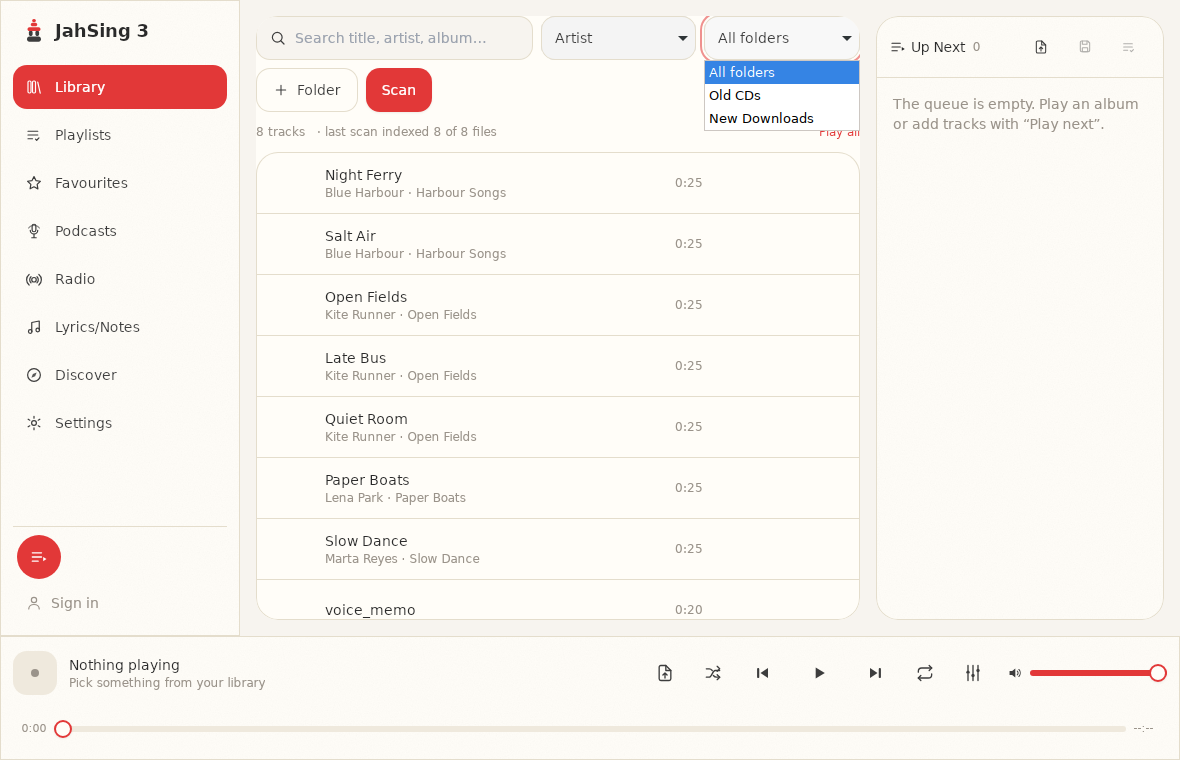
Once you have added at least one folder, a menu appears that says “All folders.” Open it and you can pick one source folder to view on its own. This is useful if you keep different kinds of music in different places, say old CDs in one folder and new downloads in another. You can combine it with search: choose a folder, then type a name, and only matches from that folder show.
We cover this idea in more detail in our article on organizing music by source folder.
Search plus the buttons
Search is not just for finding. It is also the quickest way to build a queue. Search for an album, press the play button on the first track, then use Add to queue on the others. Or search for a single song someone has asked for and press Play next. For a closer look at these buttons, see our guide to using the queue.
The “Play all” link above the list plays the songs currently shown. That means a search can become a playlist in one step: search for an artist, press Play all, and listen to everything by them in the library.
Make your searches better by fixing tags
Search can only find what the tags say. If a song has no title, or the artist field is blank, it will be hard to find or will turn up under its filename. Here are the usual culprits:
- Missing titles or artists. The song appears under its filename, like “track07,” and a search for the artist will miss it.
- Different spellings of the same artist. “The Beatles,” “Beatles” and “BEATLES” can look like three different artists in lists.
- Typos and spelling variations. A song filed under “Harbor” will not turn up if you type “Harbour,” so try a shorter search.
- Albums split in two, because the album name differs slightly between tracks.
The Edit tags button on each song fixes these. Our article on fixing missing tags and album art walks through the process, and the weekend tag tidy-up plan shows how to tackle a big library in manageable chunks.
When a song will not show up
If you are sure a song is on your computer but a search cannot find it, work through this list:
- Check the folder filter. It may be set to a single folder. Switch it back to “All folders.”
- Check the spelling and try fewer letters.
- Scan again. If you added the song after your last scan, it is not in the index yet.
- Look at the scan line. After a scan, the app shows how many files it indexed out of how many it saw. If the numbers differ, some files could not be read.
- Check that the file type is supported. JahSing 3 reads common audio, video and tracker module types. Unusual or copy-protected files may be skipped.
A five-second routine
For most days, this is all you need: click the search box, type a few letters, glance at the count, and press play. If a list is long, switch the sort. If you are looking for something old, set the folder filter. Those three controls together can find any song in a very large library in seconds.
You can download JahSing 3 from the Downloads page.
Sources: JahSing Features; JahSing About & Roadmap; JahSing 3 migration notes (project documentation).