Using the Queue Like a DJ: Up Next, Play Next and Saving Your Set
A good DJ never leaves the next song to chance. They line up what comes next, then keep the night moving. The same idea works at home. JahSing 3 has a panel on the right side of the window called Up Next, which is its queue, and learning to use it well changes how you listen. This guide explains each button, the order things appear in, and how to save a lineup you like.
What is the queue?
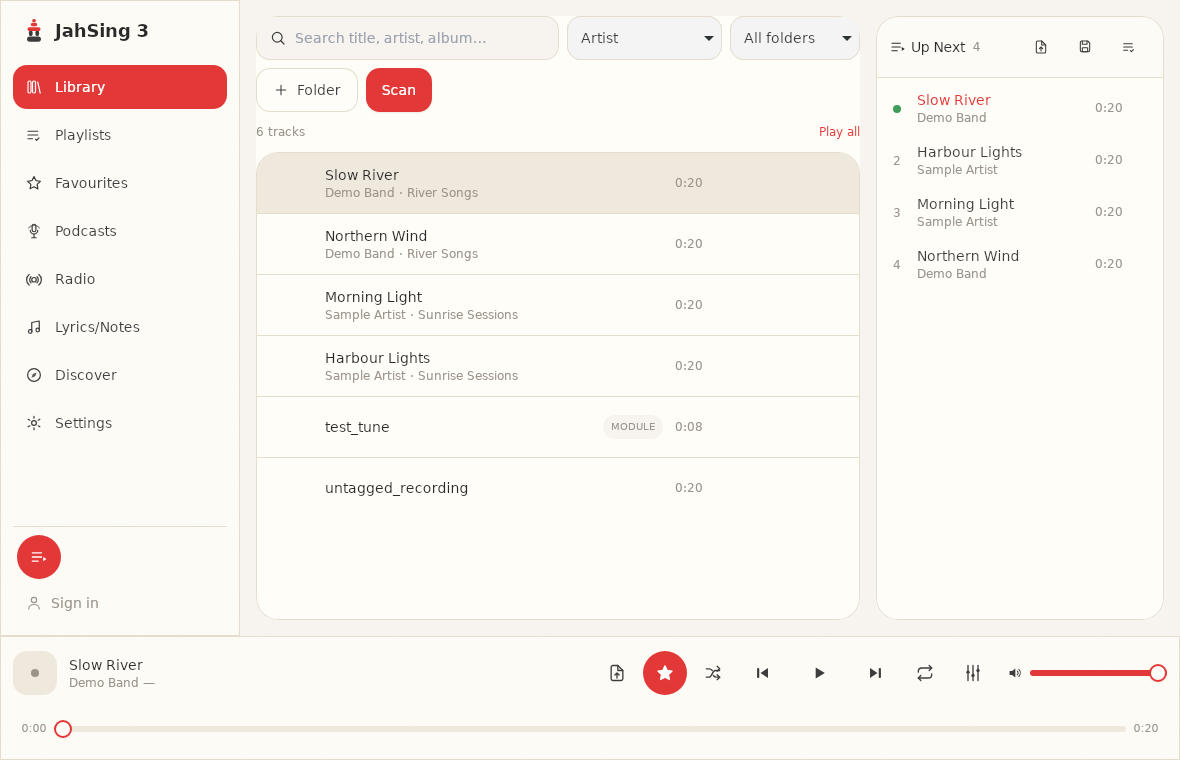
The queue is a list of songs waiting to play, in order. The song at the top (marked with a green dot and shown in red) is playing now. Songs below it are coming up. When a song finishes, the next one starts on its own. The panel also shows a count next to the title, so you can see how many songs are lined up.
Three ways to put a song on
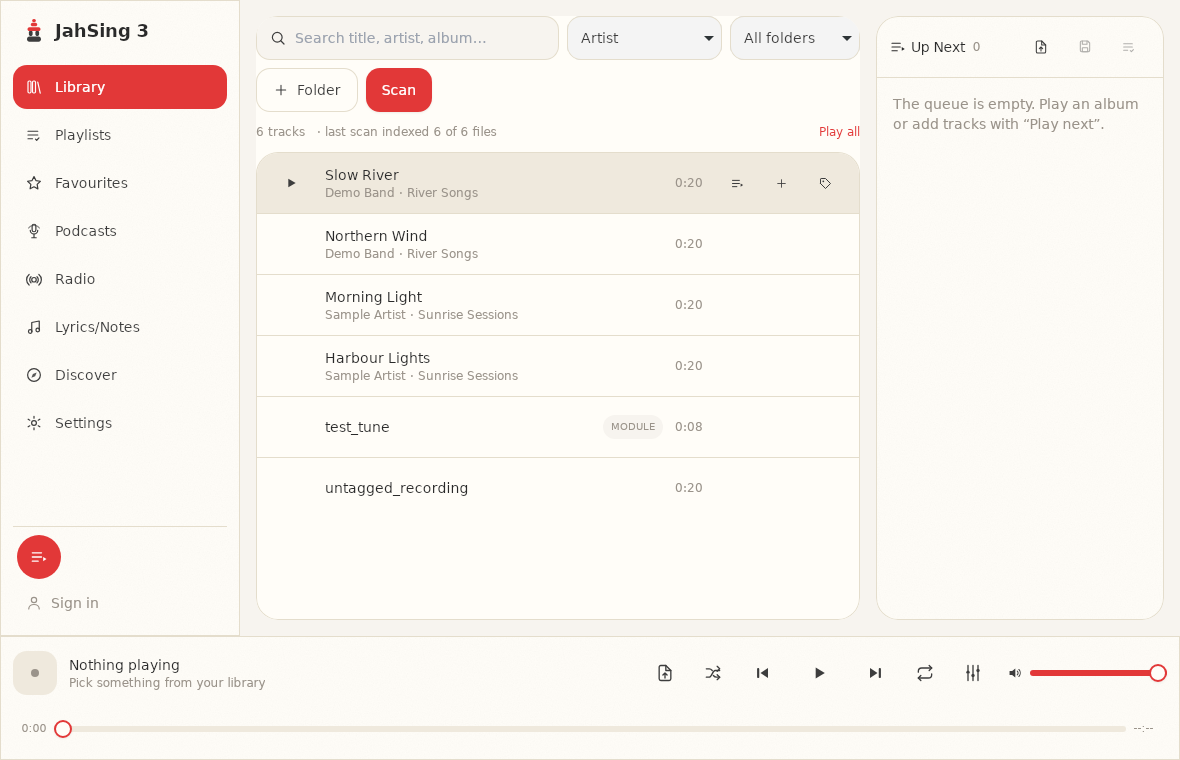
When you hover over a song in the library, small buttons appear on the right. Three of them control the queue.
1. Play
The triangle starts that song right away, and it replaces the current queue with that song. Think of it as “stop what we were doing and play this.” Use it when you want to start fresh. There is also a Play all link above the song list, which plays the songs currently shown in the list.
2. Play next
This puts the song right after the one that is playing. It is the DJ’s “I’ll play this one next” move. A detail worth knowing: if you press Play next on several songs one after another, each new song goes straight after the current one, which pushes the earlier ones down. The last song you pressed will play first. If you want them in a specific order, press the last song first.
3. Add to queue
The plus sign puts the song at the end of the queue. Use it to build a long run: press it on songs in the order you want them, and they line up behind each other.
The queue’s own menu
Each queued song has a small “more” button on the right with two options.
- Information opens the Track information window, which shows details about the file, such as its format, bitrate and sample rate. This is handy for checking what you are about to play.
- Remove from queue takes the song out of the list.
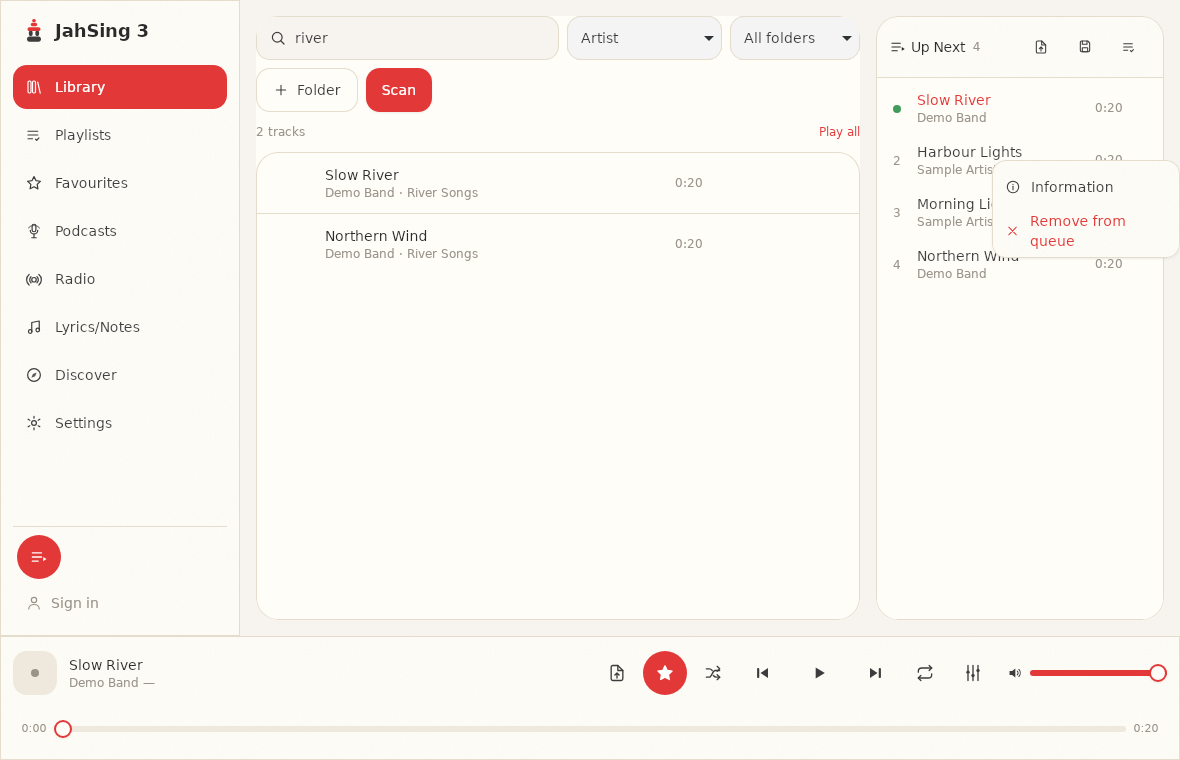
You may also be able to right-click a queued song to get the same menu. One honest note: the queue does not let you drag songs into a new order. To change the order, remove a song and add it again in the position you want, using Play next or Add to queue.
Shuffle and repeat
Two buttons in the player bar change how the queue behaves.
- Shuffle mixes the order. It lights up when it is on.
- Repeat cycles through three settings every time you press it: off, repeat the whole queue, and repeat one song. Its label shows which one you are on.
A simple trick for an evening of music: line up a long queue, switch on repeat for the whole queue, and shuffle if you want variety. You will not need to touch it again.
Saving what you built
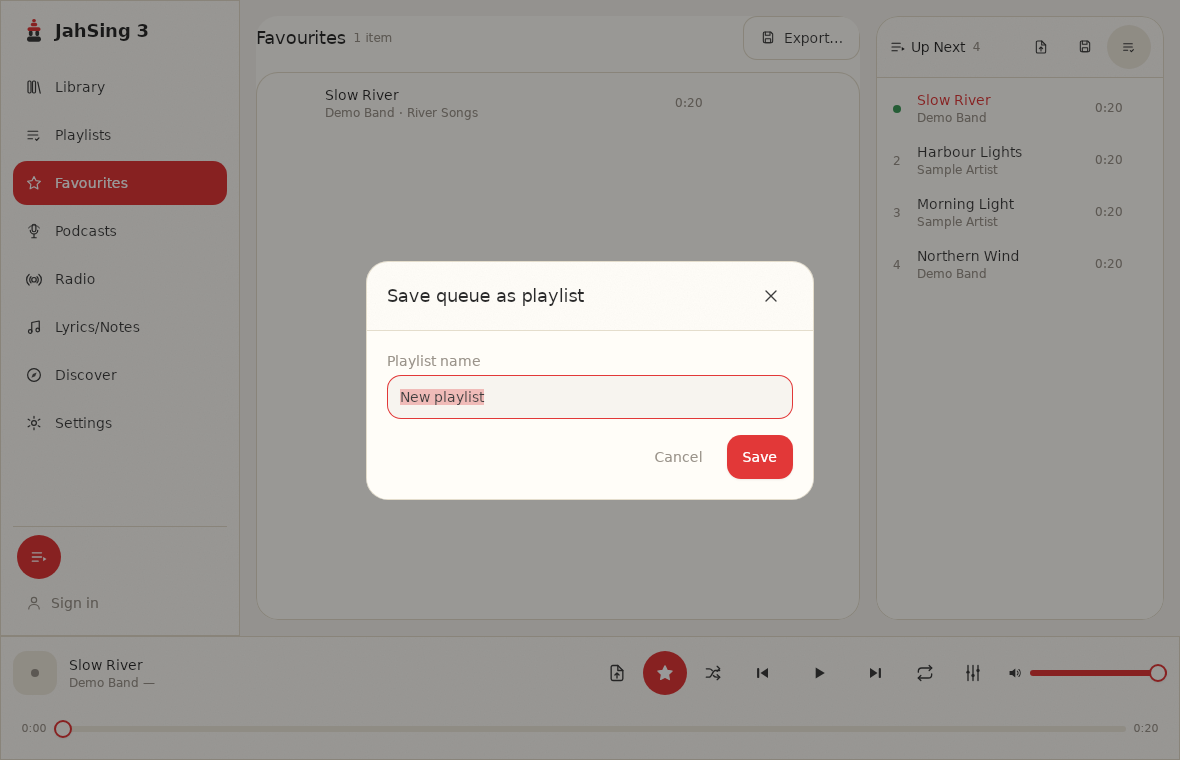
This is the part new users miss. The queue is not kept when you close the app. Next time you open JahSing 3, it starts empty. If you made a good lineup, save it. Three small icons sit at the top of the Up Next panel:
- Load playlist file: opens a playlist file from your computer into the queue.
- Save queue as playlist file: writes the lineup out as a file (the suggested name is playlist.m3u).
- Save queue as named playlist: keeps it inside JahSing 3 under a name you choose.
The third one is the easiest. After you save it, the playlist appears on the Playlists page, where you can play it again any time. See our article on playlist habits for ideas on naming and keeping them tidy.
Three DJ-style recipes
The dinner party
Press Play on a gentle opener, then press Add to queue on twenty or so songs you know suit the mood. Turn repeat on for the whole queue. Now you can forget about the player and talk to your guests.
The request line
Someone asks for a particular song. Find it in the search box, press Play next, and it will come on right after the current one without disrupting the rest.
The album run
Search for an album name, press Play on the first track, then Add to queue on the rest, in order. For albums that should flow without pauses, see our article on gapless playback.
Things to remember
- Play replaces the queue. Play next and Add to queue add to it.
- Repeated Play next presses stack in reverse. Press the last song first.
- The queue disappears when you close the app. Save it if you want to keep it.
- Information is a quick way to check a song’s format before it plays.
That is the whole control room. You can download JahSing 3 from the Downloads page and start lining up your own set.
Sources: JahSing Features; the JahSing 3 app itself, tested with sample songs created for this article.