Moving From Winamp, iTunes or Windows Media Player to JahSing 3
Changing music players feels like moving house. You worry about leaving something behind. The good news is that the most valuable part of your collection, the music files themselves, belongs to you and works in any player. What changes is everything the old program kept for itself: playlists, ratings, play counts and settings. This guide walks through the move from three well-known players, Winamp, iTunes and Windows Media Player, and tells you plainly what comes across and what does not.
The big idea: your files are free
Whatever player you used, your songs are ordinary files in folders on your computer. JahSing 3 reads them where they are. It does not copy, move or change them just by scanning. Details inside the files, such as title, artist, album and cover art, are stored in the files themselves (see our article on what your files remember about themselves) and are read by JahSing 3 automatically.
What always moves across
- The music. Any MP3, FLAC, Ogg, WAV, AAC or M4A file, plus tracker modules and video, if you wish.
- The song details stored in the files, including cover art stored inside the files.
- Your folder layout, since JahSing 3 works from folders.
What usually does not move automatically
- Playlists, unless you export them as playlist files first.
- Ratings, play counts and last-played dates. Most players keep these in their own database.
- Library groupings, smart playlists and special views. These are features of each program.
- Settings, although a few have close equivalents, as we will see.
The steps for any player
- Back up your music folder. A copy on another drive costs little and removes worry.
- Export your playlists from the old player, as described below.
- Install JahSing 3. Get it from the Downloads page.
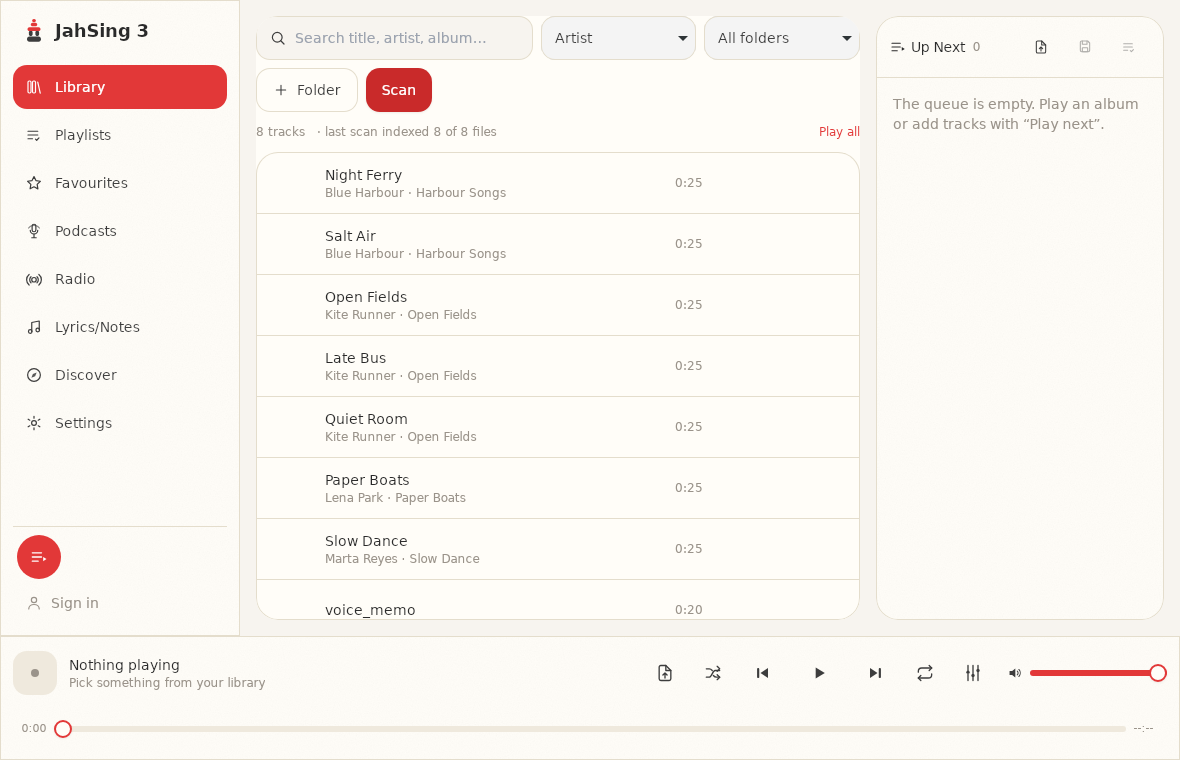
- Add your music folders and scan. Press Folder, pick each folder, then Scan. Check the “indexed X of Y files” line.
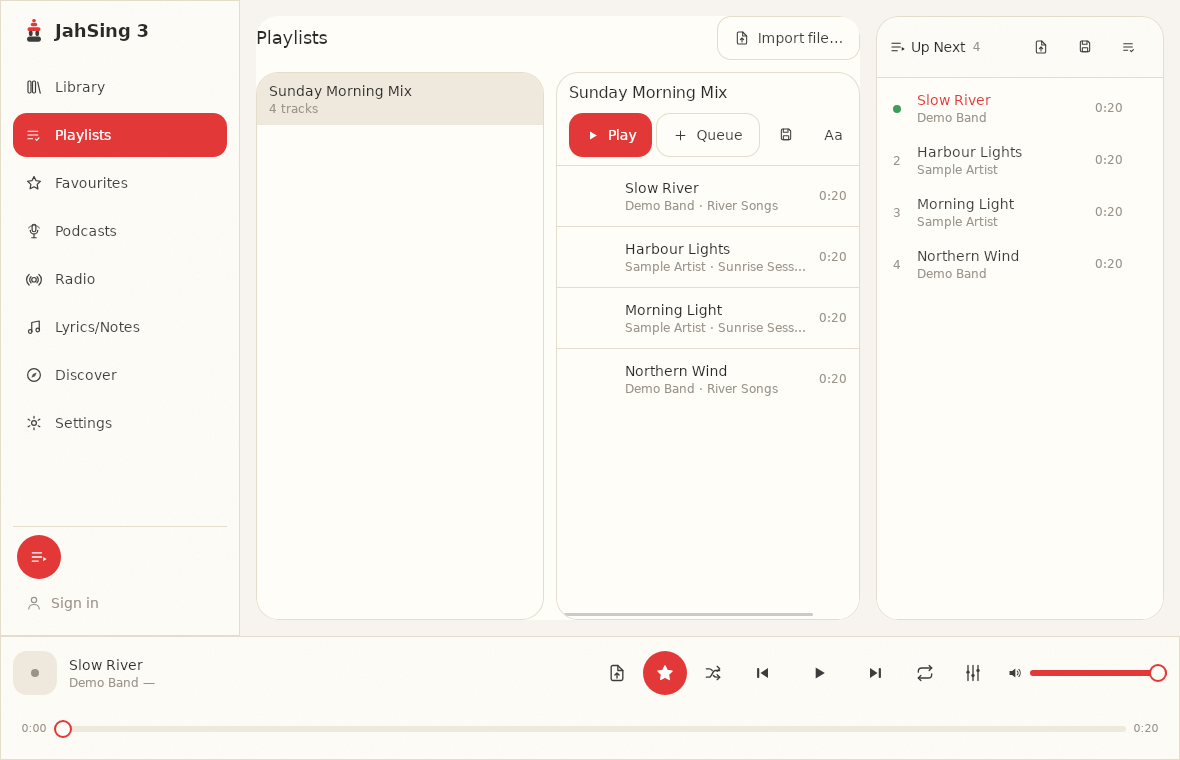
- Import the playlists. On the Playlists page, press Import file and choose each playlist file.
- Check a few favorite albums. Play them to make sure everything looks and sounds right.
- Keep the old player around for a while, in case you forgot something.
From Winamp
Winamp users have the easiest move, because JahSing 3 deliberately keeps Winamp’s spirit alive.
- Music: add the folders where your music lives and scan.
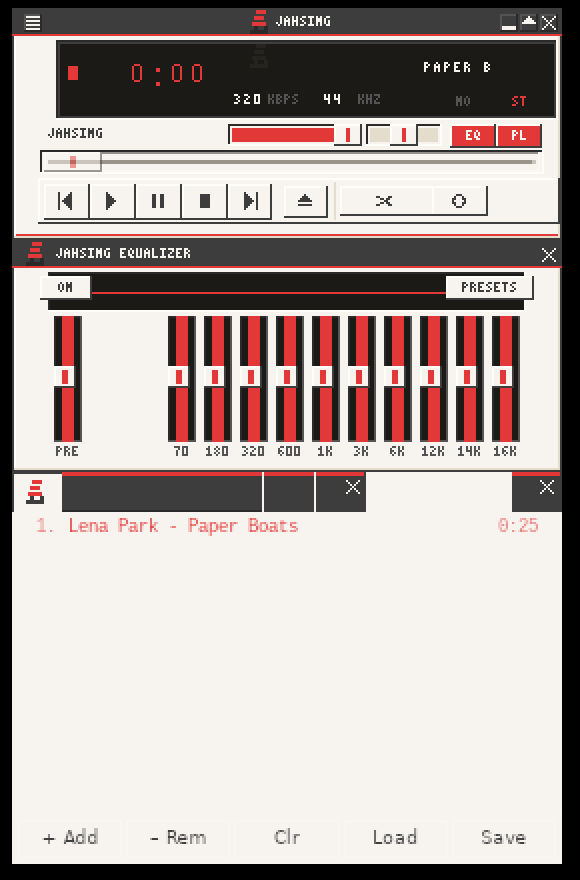
- Playlists: Winamp saves playlists as .m3u or .pls files. Both formats are understood by JahSing 3’s Import file button. If you find an old playlist file, you can import it as is. Playlist files point at where your songs were stored, so they work best when the music has not moved.
- Skins: JahSing 3’s classic skin mode loads Winamp 2 skins (.wsz files). Open Settings, use Choose skin, and press Ctrl + Shift + S (Command + Shift + S on a Mac) to switch. Our article on Winamp skins goes into this.
- Equalizer presets: JahSing 3’s 18 presets are described in the project’s code as classic Winamp graphic-EQ presets, so names like Rock, Pop and Large Hall will feel familiar. See our guide to equalizer presets.
- Keys: in skin mode, Z, X, C, V and B work as previous, play or pause and next, in the Winamp style. See the shortcuts article.
- What is different: Winamp’s plug-ins, such as visualizations and special effects, do not carry over. And a library saved inside Winamp’s own media library is not read by JahSing 3, which builds its own index.
From iTunes (or the Apple Music app on a computer)
We cover this one in detail in a separate guide, rescuing your old iTunes library. In short:
- Your songs live in a folder called iTunes Media (or Media). Add that folder in JahSing 3.
- AAC (.m4a) and Apple Lossless files play fine.
- Export playlists from the File menu, under Library, with Export Playlist, and choose M3U if the choice is offered.
- Songs bought long ago with copy protection, which end in .m4p, are not on JahSing 3’s list of supported types and will not appear.
- Play counts, ratings and the iTunes Store connection stay behind.
From Windows Media Player
- Music: Windows Media Player usually keeps music in your Music folder. Add that folder in JahSing 3 and scan.
- Playlists: the player has its own playlist type, with the ending .wpl, which JahSing 3 does not list among the formats it reads (M3U, M3U8, PLS and XSPF). Windows Media Player has a “Save playlist as” option, so look there for an M3U choice. If it is not offered, you can rebuild the playlist in JahSing 3 using the queue, then save it with the “Save queue as named playlist” button.
- Ratings and play counts: these stay in the old program’s library.
Rebuilding a playlist by hand
If a playlist cannot be exported, rebuilding is quicker than you might think. Search for each song and press Add to queue. When the queue matches the old playlist, press the third icon at the top of the Up Next panel (“Save queue as named playlist”) and give it a name. See our guide to using the queue for the details.
After the move: a few things to check
- Song counts. Compare the number in JahSing 3 with the old player. A big difference may mean protected or unsupported files.
- Missing tags. Songs the old player knew about from its own database may look bare in JahSing 3, because the details were never written into the files. Fix them in the Edit tags window.
- Duplicates. If your old player kept several copies of the same album, you may see them twice. Use the folder menu to compare.
- Paths in playlists. If an imported playlist is missing songs, the files may have moved since it was made.
What you gain
- A local-first player that works offline and does not need an account.
- One engine on desktop and Android.
- Internet radio, podcasts and lyrics in the same place as your files.
- Tag editing for MP3, FLAC, Ogg and M4A files.
- The classic skin mode, if you miss the old look.
In short
Your music files go with you. Playlists come across if you export them as files, and the old program’s ratings and counts mostly stay behind. Back up, scan, import, and check a few albums. You can download JahSing 3 from the Downloads page.
Sources: JahSing Features; M3U (Wikipedia); PLS (Wikipedia); JahSing Classic Skins; the JahSing 3 app. Playlist export options in other players vary by version, so check your version’s menus.